Google Sites favicon
Google Sites Favicon: Upload a JPG, PNG, or GIF
In Google Sites, open Settings → Brand images → Favicon, choose Upload or Select, then publish. Google's Sites Help lists JPG, PNG, and GIF for this control but does not state a pixel-size requirement.
Prepare a PNG in the browser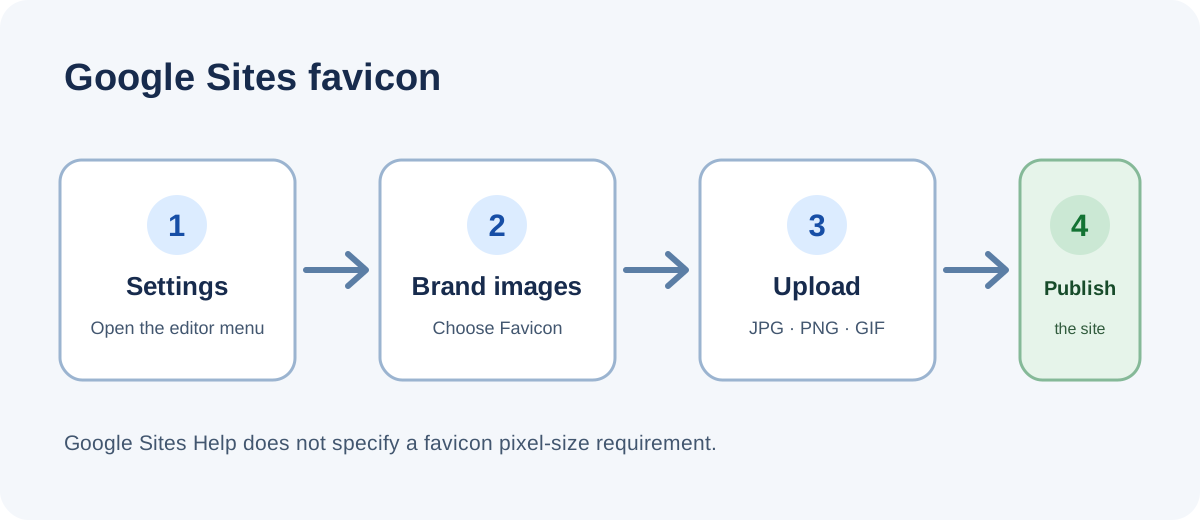
Open Settings → Brand images → Favicon, upload or select a JPG, PNG, or GIF, and publish the site. Google Sites Help does not specify favicon dimensions; in one test, a 256 × 256 PNG made with our browser tool was accepted and its published icon URL returned a PNG response.
What Google Sites documents for a favicon
Google's Sites Help places the custom favicon control at Settings → Brand images → Favicon. It says to upload or select a `.jpg`, `.png`, or `.gif` image and then publish the site. The help page does not specify a favicon pixel dimension or a maximum byte size. Do not treat a size recommendation for Google Search as a Google Sites upload limit; those are separate instructions.
The same settings panel also has a Logo section. Google says a logo appears at the top next to the site name; the Favicon section is the separate site-icon control. If the upload controls are visible but the public icon looks unchanged, first confirm which section received the file and whether the site was published afterward.
Official instructions: [Add a custom favicon in Google Sites](https://support.google.com/sites/answer/90538?hl=en#custom_favicon). The published help page lists file extensions, menu location, and the Publish action; it does not give a favicon pixel-size or byte-size limit.
One generated PNG, one Google Sites publish test
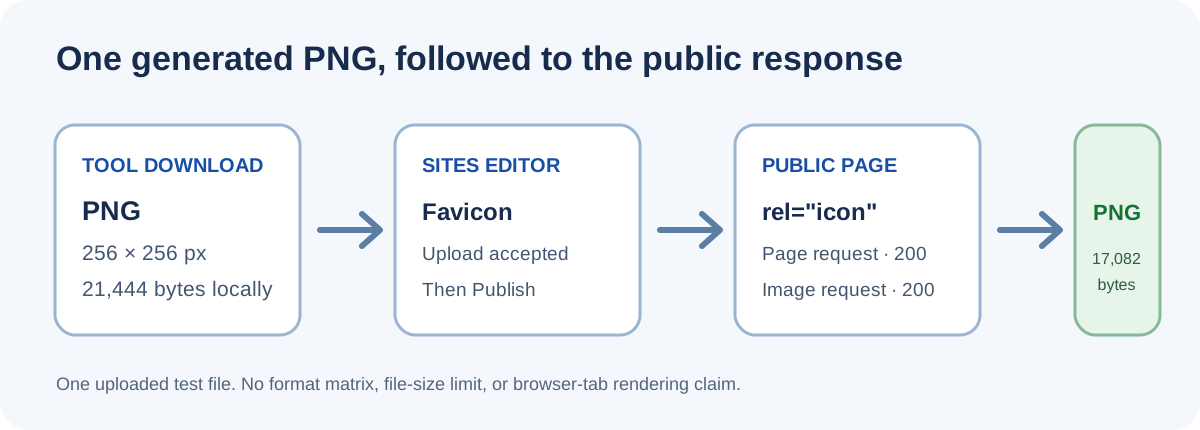
Test date: October 19, 2026. Browser: Chrome 155.0.8059.84. The operating-system build was not recorded. The source was the site's existing synthetic favicon test drawing, not a customer or brand logo. In the site's PNG-to-favicon browser tool, the selected source was shown as 256 × 256 pixels and 16.3 KB. The tool downloaded a PNG named `same-icon-squarespace-256.png`; the local file measured 21,444 bytes.
I opened a blank Google Sites page, entered Settings → Brand images → Favicon, and uploaded that generated PNG. The editor reported `网站图标已添加`, then finished processing and showed that changes were saved. I published the page. The public page returned HTTP 200 and its response HTML contained a `rel="icon"` link to a Google-hosted image. The URL is omitted here because it contains the test site's private path segment.
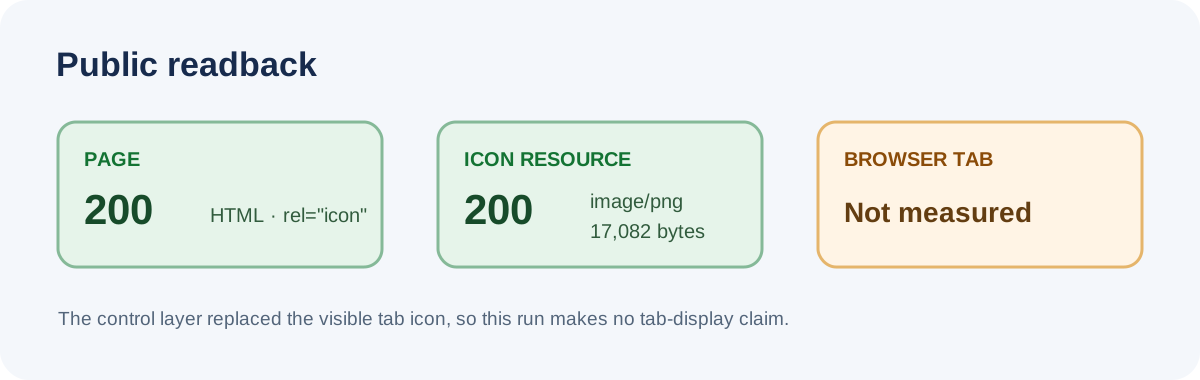
A direct public GET of that icon resource returned HTTP 200, `image/png`, and 17,082 response bytes. The downloaded PNG and the public response had different byte lengths; this check did not inspect whether Google re-encoded the pixels. The first public HTML and image requests after the editor reported successful publication both worked; the exact elapsed time was not measured.
This is one uploaded PNG on one test page. It demonstrates that this file was accepted and that a published page referenced a PNG resource. It does not establish Google's minimum or maximum dimensions, a byte-size limit, or the behavior of every supported file type. The public test site's URL and account details are intentionally not included.
Separate upload acceptance from display
The public response provides two concrete checks: the page loads, and its icon resource can be fetched. In this run, those checks returned 200 and the icon response was PNG. I did not verify the image visually in a browser tab: the browser-control layer replaces the tab icon with its own indicator, so a visible tab glyph would not be evidence of the Google Sites favicon.
If your question is whether Google Search will show the icon beside a result, use Google's separate [favicon guidance for Search](https://developers.google.com/search/docs/appearance/favicon-in-search). That document covers crawling and Search display; the Google Sites editor test above does not show what Search will display or when it will refresh.
| Check | Observed result | Boundary |
|---|---|---|
| Google Sites upload | Generated PNG accepted; editor said 网站图标已添加 | One PNG file on one test page |
| Published page | HTTP 200; HTML included a rel="icon" link | Private test-site path withheld |
| Referenced icon GET | HTTP 200 · image/png · 17,082 bytes | Image URL not printed because it is test-site-specific |
| Browser tab rendering | Not measured | Control extension replaces the tab icon |
Need to make an image for the upload? Use the PNG-to-favicon browser tool. For the difference between platform upload rules and browser file-format markup, see the favicon size guide.
Add the favicon in Google Sites
- 01Open Brand images
In the Sites editor, open Settings and choose Brand images. The Favicon area is separate from the Logo area.
- 02Upload or select an image
Under Favicon, choose Upload to use a local file or Select to choose an image from Google's available sources. Google's help lists JPG, PNG, and GIF.
- 03Publish, then inspect the public page
Publish the site after adding the image. Check the published page's icon link and request the referenced image; an editor preview alone does not establish what the public page serves.
FAQ
Google Sites favicon questions
Where do I upload a favicon in Google Sites?
Open Settings → Brand images → Favicon in the Sites editor, then choose Upload or Select. Publish the site after adding it.
What file types does Google Sites list for a favicon?
Google Sites Help lists JPG, PNG, and GIF for the Favicon upload control.
What size should a Google Sites favicon be?
The Google Sites Help page used here does not state a pixel-size requirement. One 256 × 256 PNG was accepted in this test; that single result is not a documented limit.
Can I upload an ICO file as a Google Sites favicon?
The help page lists JPG, PNG, and GIF, not ICO. This test did not try uploading an ICO.
Does an accepted favicon upload prove it appears in Google Search?
No. This test verified a public page icon link and a PNG response, not Google Search display or indexing.
How long did the Google Sites favicon take to appear?
The first public page and icon requests after publication succeeded, but the elapsed time was not measured. Browser-tab rendering was not verified.