android icon size
android icon size
There is no single android icon size for every job. Google Play artwork, an app's launcher icon files, and the icon drawn on your home screen are controlled in different places. Preview your square source above, then use the destination-specific guide below; the preview does not package Android resources.
Resize an image to an icon size
Choose an image to preview a square, contain-fit PNG.
Download PNGThe image stays in this browser. This resizes a PNG preview; it does not create an ICO file.
For a Google Play listing, prepare a 512 × 512 px square PNG. For an adaptive Android launcher icon, provide separate foreground and background artwork on 108 × 108 dp layers and keep essential foreground content inside the central 66 × 66 dp safe area. For older launcher resources, the 48 dp mdpi baseline maps to density-specific pixel sizes. If an installed icon is simply too small on screen, check the launcher grid or display settings instead of enlarging the store image.
First choose which Android icon you mean
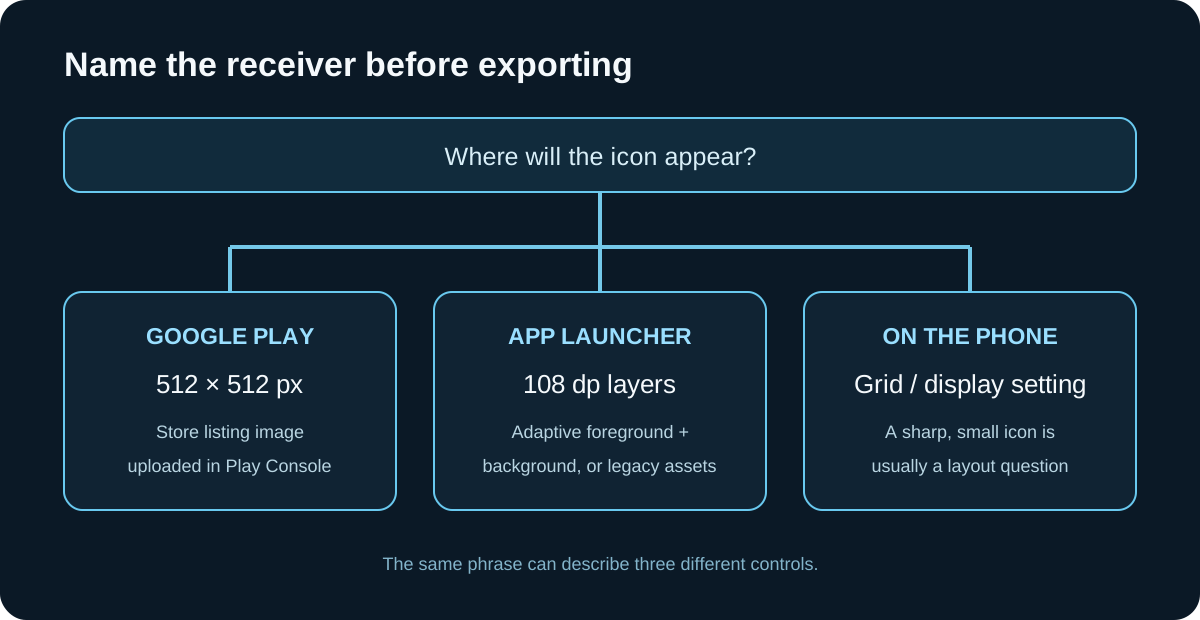
The phrase android icon size can mean a store upload, files packaged with an app, or the size a phone launcher draws. Those are not interchangeable outputs. A 512 px Play image belongs to a store listing; it does not become the app's launcher artwork just because it is square.
Use the visible destination to choose a path: a rejected Play upload needs a listing-file check; a cropped launcher mark needs a layer and mask check; an icon that looks small beside other home-screen icons points to the launcher layout or device settings. The preview above only resizes a local PNG preview; it cannot create adaptive layers or Android Studio resource folders.
Adaptive launcher icons use dp layers
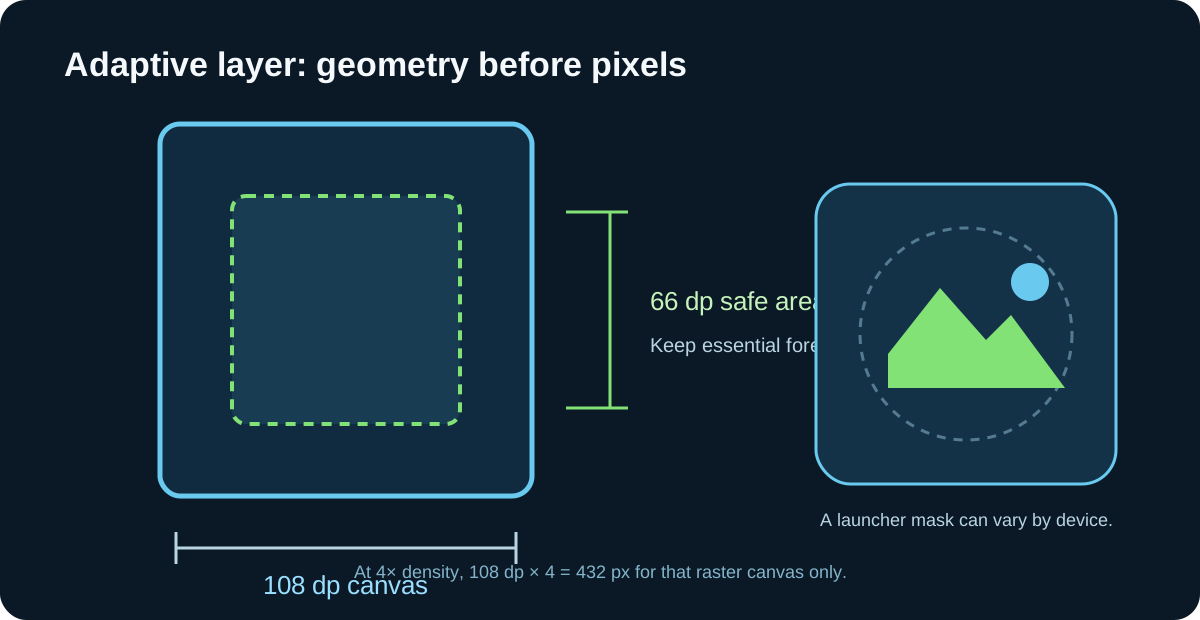
For an adaptive launcher icon, prepare a foreground layer and a background layer, each measured on a 108 × 108 dp canvas. Keep the recognizable foreground mark within the central 66 × 66 dp safe area. Android launchers can apply different masks and visual effects, so artwork near the outer edge can disappear even when the source image has the right square dimensions.
These dp measurements describe layout geometry, not one universal pixel file. If you rasterize a 108 dp layer at xxxhdpi, the density multiplier is 4, so the canvas is 108 × 4 = 432 px. That is one density-specific export; Android Studio's Image Asset Studio can generate the resource variants for the project.
Legacy launcher files scale from a 48 dp baseline
For the legacy launcher icon, Android's density example uses 48 × 48 px at mdpi as the 48 dp baseline. The same layout size maps to different raster dimensions as density changes. Use the matching density resources rather than expecting one small PNG to stay sharp on every screen.
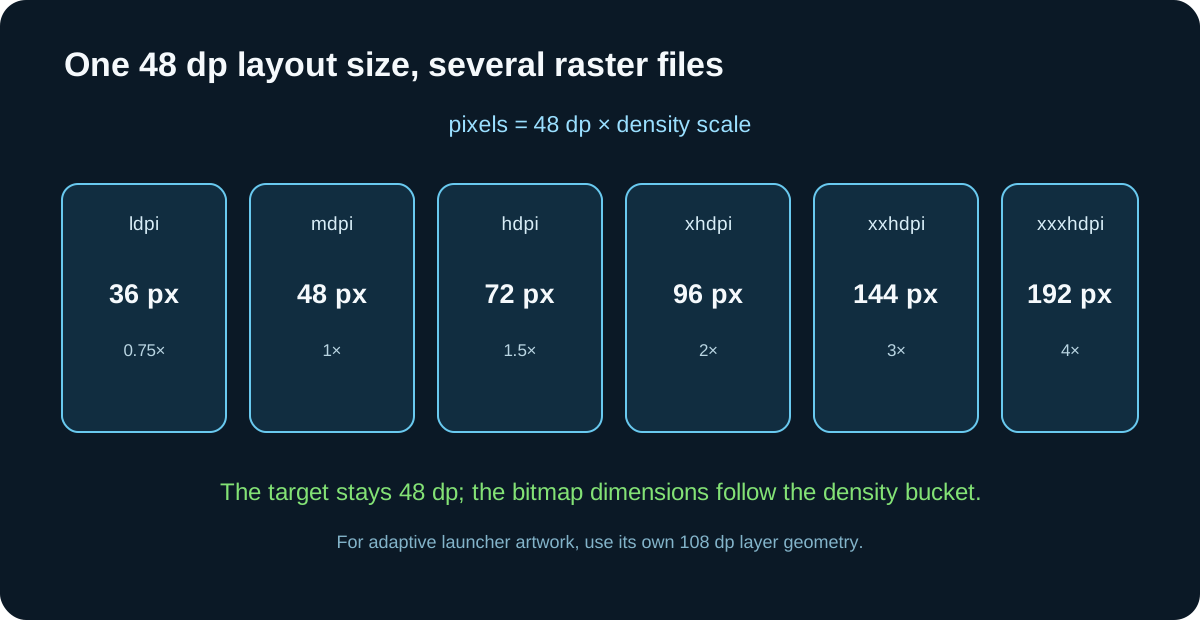
Image Asset Studio can create launcher assets and place density-specific outputs in mipmap folders. Check the generated resource names and the app manifest reference in the actual project. If the project uses an adaptive icon, inspect that configuration as well; changing a legacy PNG alone may not change the adaptive launcher artwork.
A small icon on a phone is usually a different problem
If the installed icon is sharp but appears smaller than its neighbors, exporting a larger Play image will not change the launcher cell. Android versions and manufacturers label these controls differently, but a home-screen grid or display-size setting can change how much space the interface gives icons. That is a device UI setting, not an image-file dimension.
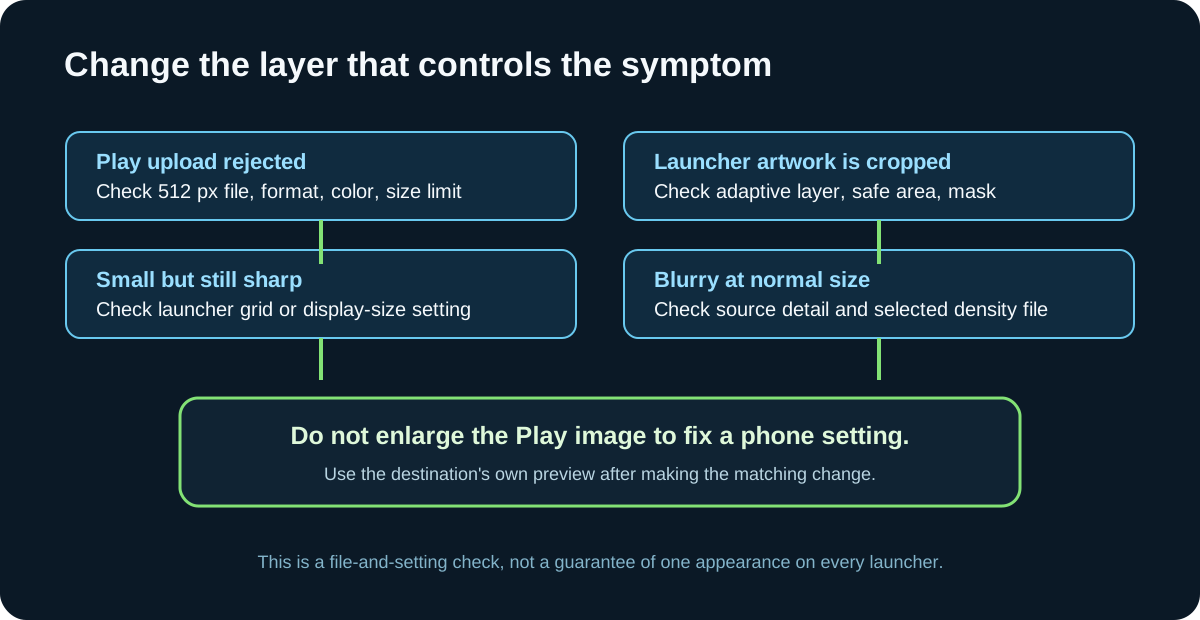
If the mark is clipped, inspect the adaptive foreground and mask. If it is soft, inspect the source artwork and the density-specific resource selected by the app. If the icon is rejected before installation, check the store's upload requirements. Fix the layer that produces the symptom rather than resizing every file.
| Destination or symptom | Starting point | What controls the result |
|---|---|---|
| Google Play listing | 512 × 512 px square, 32-bit PNG, sRGB; max 1024 KB | Play Console upload asset |
| Adaptive launcher icon | Two 108 × 108 dp layers; central 66 × 66 dp safe area | Foreground/background resources and launcher mask |
| Legacy launcher icon | 48 dp at mdpi; provide density-specific raster resources | Selected mipmap density resource |
| Small but sharp home-screen icon | No new PNG size is implied | Launcher grid or device display setting |
| Blurry or clipped mark | Inspect the used density file or adaptive foreground | Source detail, resource mapping, safe area, and mask |
Match the symptom to the file or setting
| What you see | Check first | Do not change first |
|---|---|---|
| Play Console rejects the image | Listing dimensions, format, color space, and file limit | Launcher mipmap files |
| Launcher crops the logo | Adaptive foreground safe area and device mask | Play listing PNG |
| Icon looks small but stays sharp | Home-screen grid or display-size control | Store artwork dimensions |
| Icon looks soft | Source artwork and density-specific launcher resource | Phone grid setting |
Choose the Android icon size that matches your target
- 01Name the destination
Choose Google Play listing, Android launcher, or visible home-screen size. For an in-app toolbar symbol, use the component's UI design specification instead of the launcher-icon sizes here.
- 02Use the destination's unit
Use px for an uploaded raster file and dp for adaptive layer geometry. For raster launcher resources, match the project's density buckets; do not turn one dp value into a universal PNG export.
- 03Preview the actual receiver
Check adaptive masks and the central safe area in the app's asset preview. Then inspect the built project or the phone setting that draws the installed icon.
FAQ
android icon size questions
What size should an Android app icon be?
It depends on the destination. Google Play listing art uses a 512 × 512 px square. An adaptive launcher icon uses two 108 × 108 dp layers with important foreground content in a central 66 × 66 dp safe area. Legacy launcher resources use density-specific pixel files.
Is the 512 × 512 Play icon the launcher icon?
No. The 512 × 512 px image is the Google Play listing asset. Launcher artwork is packaged with the Android app as launcher resources.
Why does my Android home-screen icon look too small?
If it is sharp, check the launcher grid or device display-size settings first. Those controls affect the space used by icons on screen; a larger store upload does not necessarily change it.
How many pixels is 108 dp for an Android adaptive icon?
It depends on the display-density bucket used for a raster export. For example, at xxxhdpi's 4× multiplier, 108 dp maps to 432 px. The dp canvas remains 108 dp.