Pixel contrast check
Favicon Checker: Compare Icon Pixels on Light and Dark Backgrounds
A favicon checker can show how visible icon pixels contrast with a chosen background. This browser-only sample draws your local image at 16 × 16, composites transparent pixels over light and dark samples, and reports a pixel distribution. It does not certify an icon or predict how a browser will paint it.
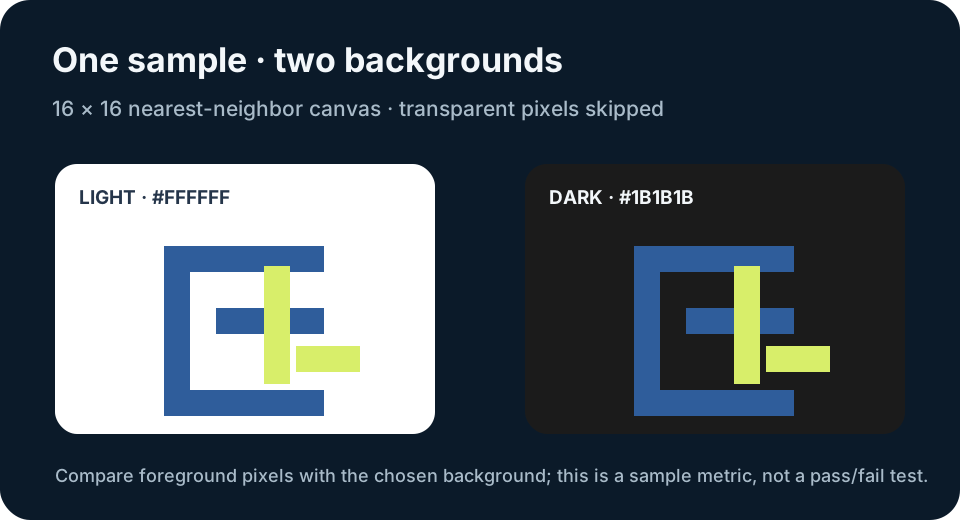
The first question is which background you want to compare
An icon with transparent edges has no single background color of its own. A white preview can make a pale mark look faint, while a dark preview can change the apparent separation. The checker therefore asks for two sample background colors instead of labeling an upload simply good or bad.
Choose a PNG, JPEG, WebP, GIF, or SVG file. The image is decoded by your browser and is not sent to a server. The canvas draws it into a 16 × 16 sample using nearest-neighbor scaling, so each canvas pixel comes from one sampled source location rather than a smoothed blend. That makes this a deliberately small sample, not a reproduction of every browser's rendering pipeline.
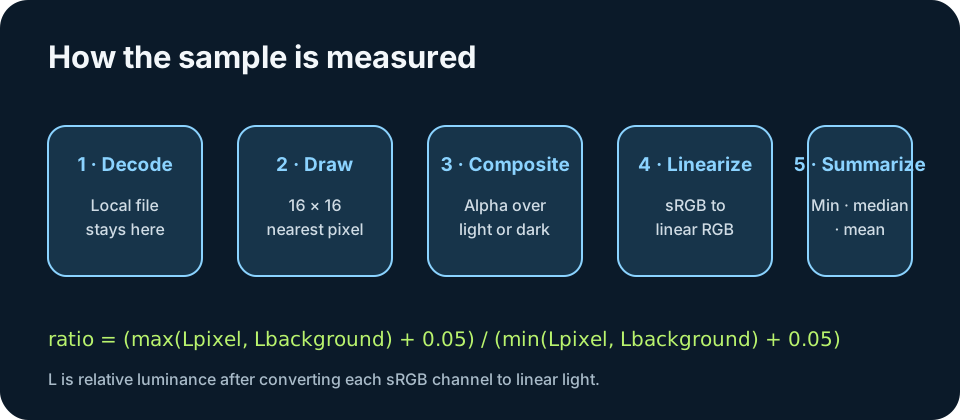
What each number means
For partially transparent pixels, the checker composites the sampled color over the selected background. Fully transparent pixels are left out. It converts each sRGB channel to linear light, computes relative luminance, then compares each visible pixel with the background using (max(Lpixel, Lbackground) + 0.05) / (min(Lpixel, Lbackground) + 0.05).
The minimum, median, and mean summarize the per-pixel ratios for that background. The visible-pixel and transparent-pixel counts show which canvas pixels were included. These are descriptive measurements of this rendered sample. There is no threshold or pass/fail label here, and a larger summary value is not an accessibility verdict.
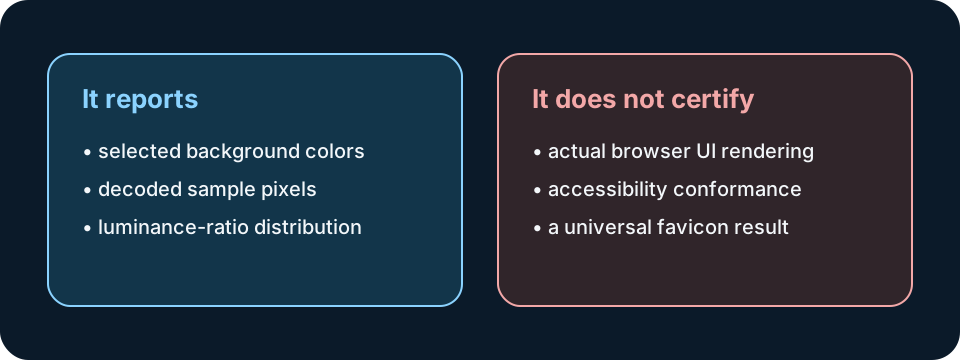
Use the result as a focused visual check
Try the same file with the two sample colors, then change either color to match a surface you care about. If the mark disappears against one background, inspect the original art and its transparent edge pixels. A contrast summary points to a difference in this sample; it does not choose a design or change the file.
This measurement says nothing about the browser's selected favicon resource, the dimensions stored inside an ICO, platform-specific icon selection, or the exact color behind a live tab. It also does not test text, shapes, or interface controls against an accessibility standard. Use those as separate questions with their own evidence.
Measure a 16 × 16 sample
Choose a local image. It stays in this browser. This reports pixel contrast for the displayed sample only.
Choose an image to measure.
This is a pixel contrast calculation, not an accessibility, browser, or favicon certification. Transparent pixels are excluded; partially transparent pixels are composited over each selected background.
A measured sample from the included two-color fixture
I drew the included 16 × 16 SVG fixture at its native size. It is a crisp split: 128 pixels of #2f5d9b and 128 pixels of #d8ee6a, with no transparent pixels. For each background, the values below are the per-color pixel ratios and the distribution calculated from those 256 rendered pixels.
| Sample background | Pixel distribution | Minimum · median · mean |
|---|---|---|
| #FFFFFF | #2f5d9b: 128 pixels at 6.65:1; #d8ee6a: 128 pixels at 1.28:1 | 1.28:1 · 3.96:1 · 3.96:1 |
| #1B1B1B | #2f5d9b: 128 pixels at 2.59:1; #d8ee6a: 128 pixels at 13.42:1 | 2.59:1 · 8.00:1 · 8.00:1 |
The median is the average of the two center sorted pixel ratios because the fixture has two equally sized color groups. These values belong only to this exact fixture and the two listed backgrounds; another file produces its own distribution.
A local pixel calculation, with a narrow scope
The checker reads a file selected from your device, draws a 16 × 16 sample in this browser, composites alpha over each chosen background, and reports visible-pixel ratios. Its output describes that canvas sample only. It is not a favicon certification, an accessibility conformance result, or a measurement of a browser's tab artwork; if you need to report this checker's behavior, send us a note.
For improving small favicon clarity, see the [improving small favicon clarity](favicon-small-icon-clarity).
FAQ
Favicon checker questions
Does this tell me whether a favicon passes an accessibility rule?
No. It reports relative-luminance ratios for visible pixels in a 16 × 16 canvas sample and selected backgrounds. It does not apply a pass threshold or evaluate interface conformance.
Does the checker upload my image?
No. The selected file is decoded by the browser and drawn to a local canvas. This page's checker script makes no network request with the image contents.
Why are transparent pixels skipped?
A fully transparent pixel has no visible foreground color to compare. Partially transparent pixels are composited over each sample background before their ratio is calculated.
Will a browser tab show this same result?
No such prediction is made. A browser can choose a different icon resource, draw it at another size, and place it on a surface not reproduced by this sample.