Favicon troubleshooting
Favicon Not Showing? Check Which Surface Is Missing It
Start by naming the place where the icon is missing: a browser tab, Google Search, an iPhone Home Screen, or an installed web app. Each surface reads a different route, so replacing one image may not fix the failed one.
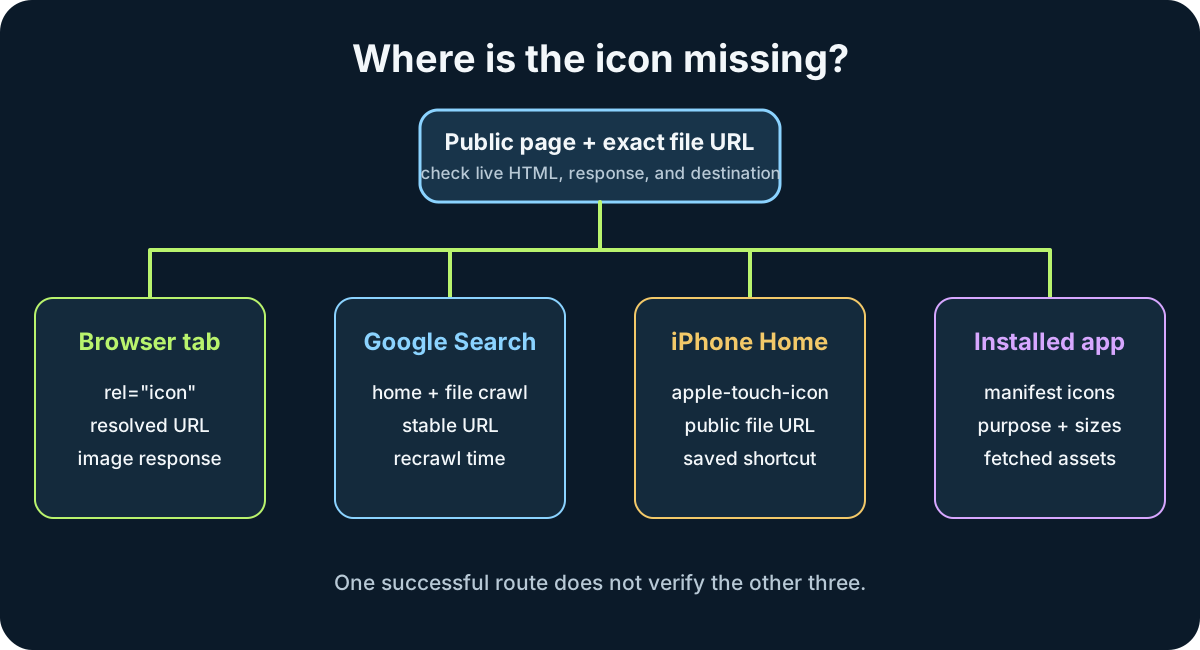
Check the surface first. For a browser tab, inspect the live page's rel="icon" link and request its exact URL. For Google Search, check the homepage and favicon are crawlable, then allow time for a recrawl. For an iPhone Home Screen or installed web app, verify the separate touch-icon or manifest route. A working icon in one place does not prove the others are configured; the favicon troubleshooting checklist separates these surfaces before you change another file.
One working icon route does not verify the other three surfaces in this map.
The same word can describe four different failures
A favicon is not one universal display slot. A coded page can declare a browser icon with `rel="icon"`; Google's search-result favicon has crawler and hostname rules; an iPhone Home Screen icon uses an Apple touch-icon declaration; and an installed web app can select an icon from its manifest. Treating these destinations as one setting makes troubleshooting slower because a successful upload may belong to a different route.
Use the visible symptom to select the check. If the browser tab is blank, begin with the published page head and the icon request. If the tab works but Google shows a default or old mark, leave the tab setup alone and check Google's documented route. If only a saved or installed icon is wrong, inspect the touch-icon or manifest entry.
Browser tab: follow the live link to its response
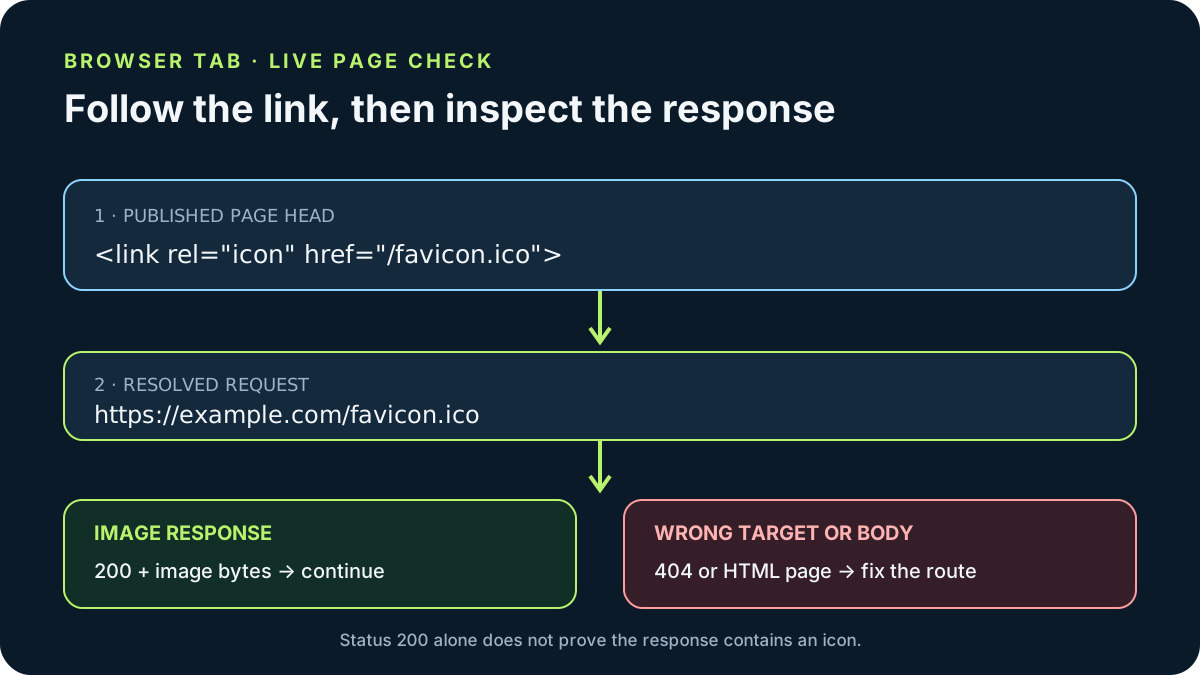
On the public page, inspect the `link` element whose `rel` includes `icon`. Copy the browser-resolved URL rather than guessing from the filename. Open it directly and check that the response is successful and contains an image. A server can return status 200 with an HTML page, so the status alone does not confirm that the browser received icon bytes.
If the exact URL is broken, compare it with where the file was actually deployed. A root-relative `/favicon.ico` points to the domain root, while `favicon.ico` is resolved relative to the current page. When the request and file are correct but an old image remains, test a fresh browser context before replacing the artwork. Keep the URL stable unless a deliberate new filename is needed to separate a changed asset from a cached response.
Google Search: check its crawl route separately
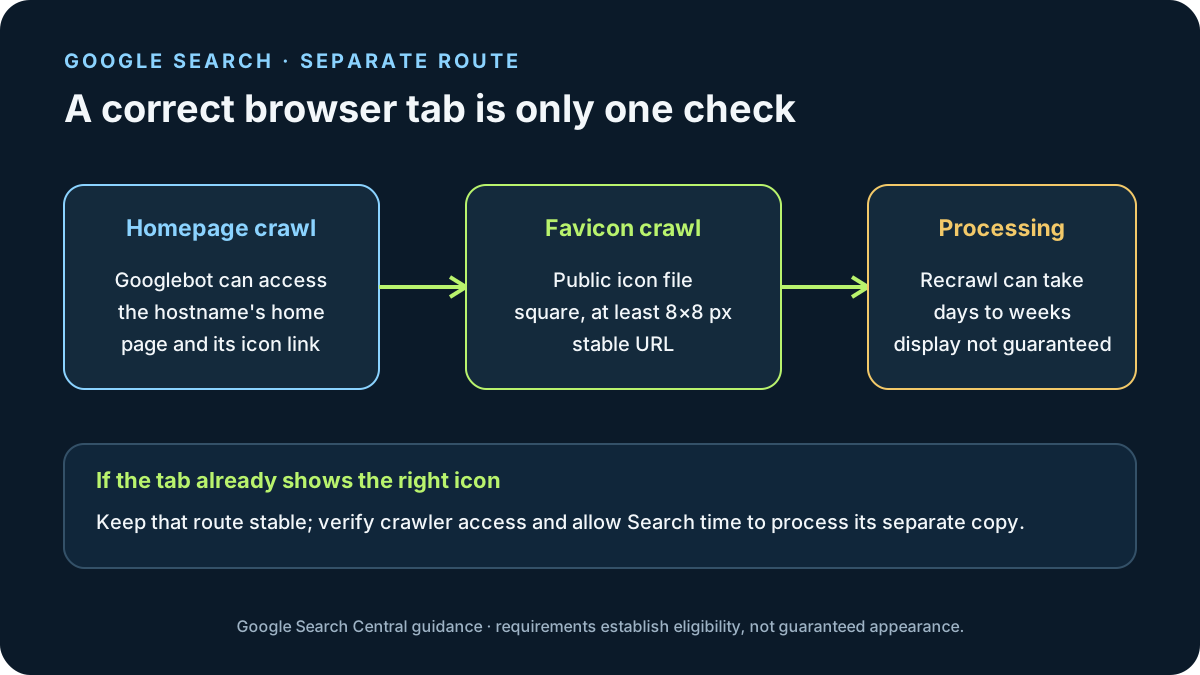
Google documents that its search-result favicon is associated with a hostname. Its crawler needs access to both the homepage and the favicon file, and the icon URL should remain stable. The documented image needs a square 1:1 shape and must be at least 8 by 8 pixels; Google recommends more than 48 by 48 pixels for better display across surfaces. Meeting these conditions makes an icon eligible, but does not guarantee that it will appear.
After changing the homepage declaration or file, Google says recrawling can take several days to several weeks. You can request homepage indexing through Search Console's URL Inspection tool, but that request is not an instant favicon refresh. If the browser already shows the correct icon, changing its HTML repeatedly can introduce a new problem without speeding up Google's processing.
Home Screen and installed app: verify the other declarations
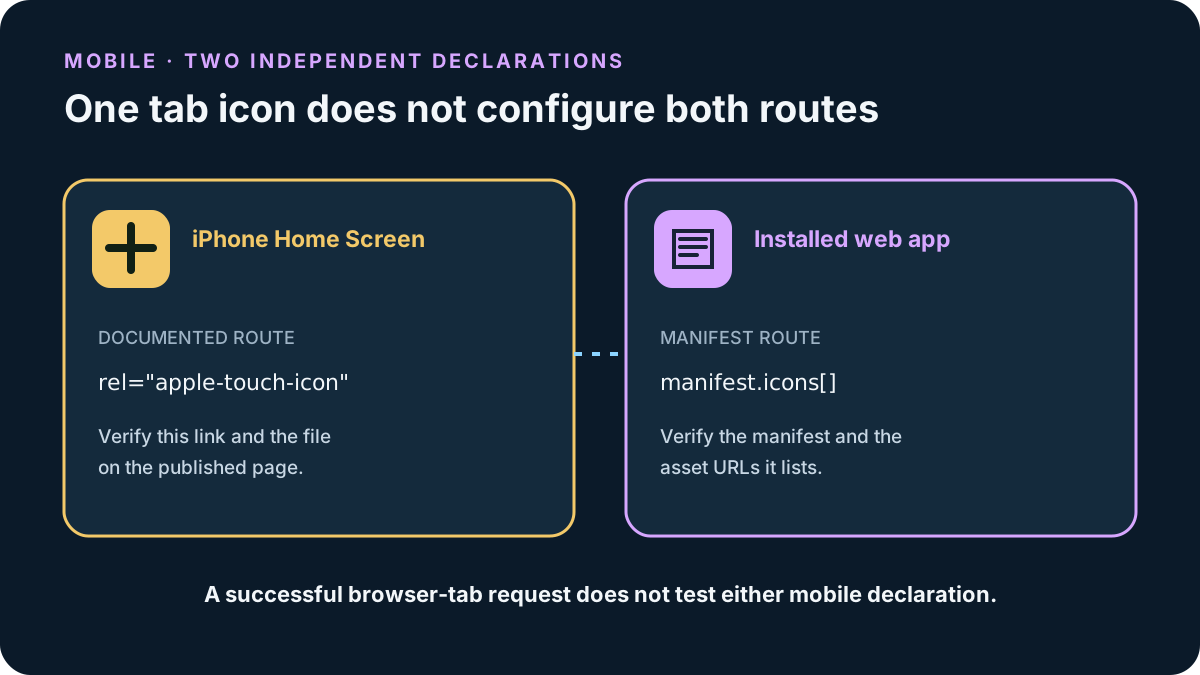
A browser tab icon does not by itself configure every mobile destination. Apple documents `rel="apple-touch-icon"` for a Home Screen web clip. An installable web app instead declares icons in its web app manifest. Check that each file URL is public and that the declaration belongs to the live page or manifest that the device actually loads.
If the route and file are correct but a device keeps showing an older mark, record which device surface is stale and test a newly saved shortcut or a fresh install only when it is safe to do so. That observation helps separate a missing declaration from a saved icon that has not refreshed; it does not establish a universal cache duration.
Use this small result sheet to avoid changing the wrong thing
Before editing, record the surface, the live declaration, the resolved file URL, the response status and content type, and the result after a fresh load. This makes the next action concrete: repair a missing link, fix the response, allow a crawler to revisit, or configure a separate mobile route. Do not resize an image to fix a request that currently returns an error page.
| Where it is missing | First place to inspect | What a passing check means |
|---|---|---|
| Browser tab | Published page head and resolved rel=icon URL | The live page points to a public image response |
| Google Search result | Homepage and favicon crawl access, stable URL, documented dimensions | The route is eligible; display still is not guaranteed |
| iPhone Home Screen | Live apple-touch-icon link and its file | The Home Screen route has its own declared image |
| Installed web app | Manifest icon entries and fetched files | The installed-app route has usable manifest assets |
For checking the HTML favicon link, see the [checking the HTML favicon link](favicon-html).
Run these checks in order
- 01Name the missing surface
Write down whether the icon is missing in a browser tab, a Google result, an iPhone Home Screen bookmark, or an installed web app. A report like “favicon not showing” is not specific enough to tell which file or declaration to inspect.
- 02Inspect the published page, not its editor preview
Open the public page and inspect its current HTML. For a browser icon, find the active `link rel="icon"` element and copy its resolved `href`. A CMS preview or upload confirmation does not establish that the public page serves the same declaration or file.
- 03Request the exact icon URL
Open the copied URL directly. Confirm it returns the image file rather than an error or an HTML fallback page. If the response fails, fix the deployed path or access rule before changing image dimensions.
- 04Follow the route for that surface
A browser tab uses the page icon link. Google Search separately crawls the homepage and favicon. An iPhone Home Screen uses an Apple touch-icon link, while an installable web app uses its manifest icons. Check only the route for the missing surface first.
- 05Change one cause, then recheck
After correcting a URL, file, or crawl setting, reload the live page and request the icon again. Keep the URL stable when possible. Browser display caches and Google's recrawl schedule are different; repeated uploads or indexing requests cannot prove that either surface has refreshed.
FAQ
Favicon not showing questions
My favicon appears in the browser but not in Google. Is the file broken?
Not necessarily. Google Search separately crawls the homepage and favicon and may take several days to several weeks to recrawl. Verify crawl access and the stable URL, then allow processing time; a browser tab result does not confirm Google's search display.
The icon URL returns 200. Why is the tab still blank?
A 200 response can still contain an HTML fallback page instead of image bytes. Check the response content type and file itself, then confirm that the public page points to that exact URL.
Will changing the favicon size fix every missing icon?
No. Dimensions matter for some requirements, but a missing or incorrect URL, blocked request, wrong declaration, or separate mobile route must be diagnosed at its own layer.
Does `rel="icon"` set the iPhone Home Screen icon too?
It identifies a page icon. Apple documents a separate `rel="apple-touch-icon"` route for a Home Screen web clip.