PNG to ICO troubleshooting
How to Keep a Transparent Background When Converting PNG to ICO
To keep a transparent background in a PNG to ICO conversion, start with a PNG that actually has transparent pixels, convert it without adding a background, and inspect the ICO on light and dark surfaces at every size you plan to use.
Convert a PNG to ICOA white rectangle in the ICO usually means the source artwork already has opaque white pixels or a conversion step added a background. A pale outline that appears only at small sizes points instead to edge pixels or resizing. Check the source first, then the generated ICO layers; changing the file extension alone will not fix either problem.
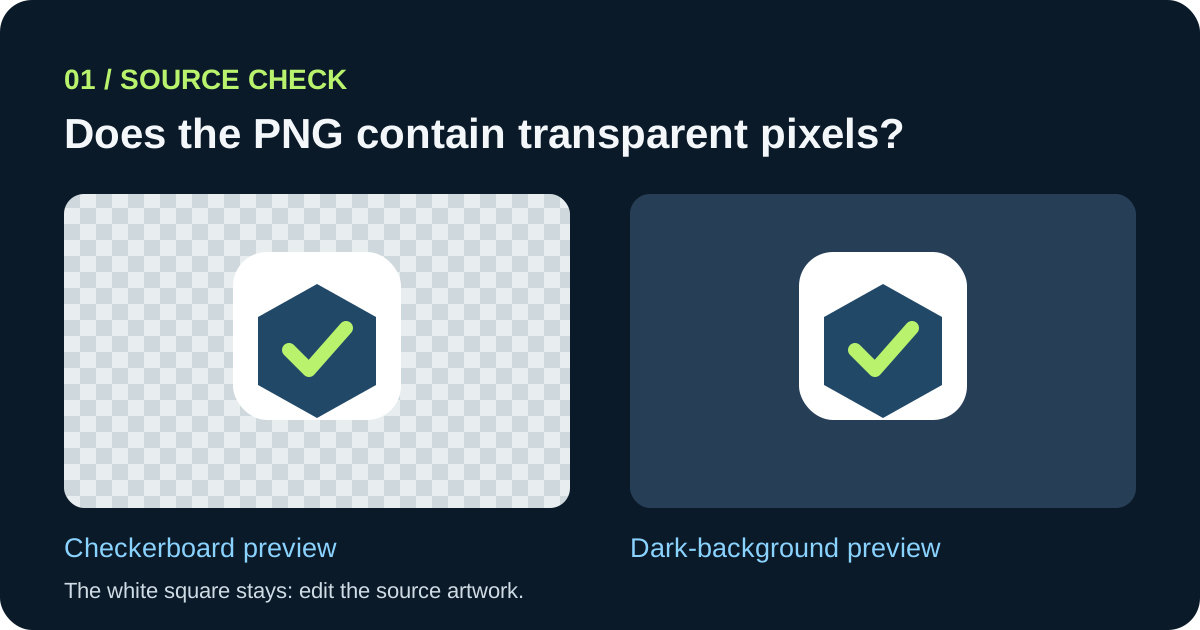
A checkerboard in an editor is only a display convention. Verify the PNG's alpha information or place it over two contrasting backgrounds before assuming its corners are transparent.
Find where the white box entered
Look at the four corners of the original PNG first. A file can have a .png extension while every pixel is opaque; the format permits transparency but does not guarantee that an image uses it. If the corners are opaque, edit the source rather than repeatedly converting the same file.
If the PNG corners disappear against a contrasting fill but the ICO corners do not, inspect the converter's background option and the actual output layer. This separates a source problem from a conversion problem without guessing from a thumbnail.
Treat a halo differently from a solid background
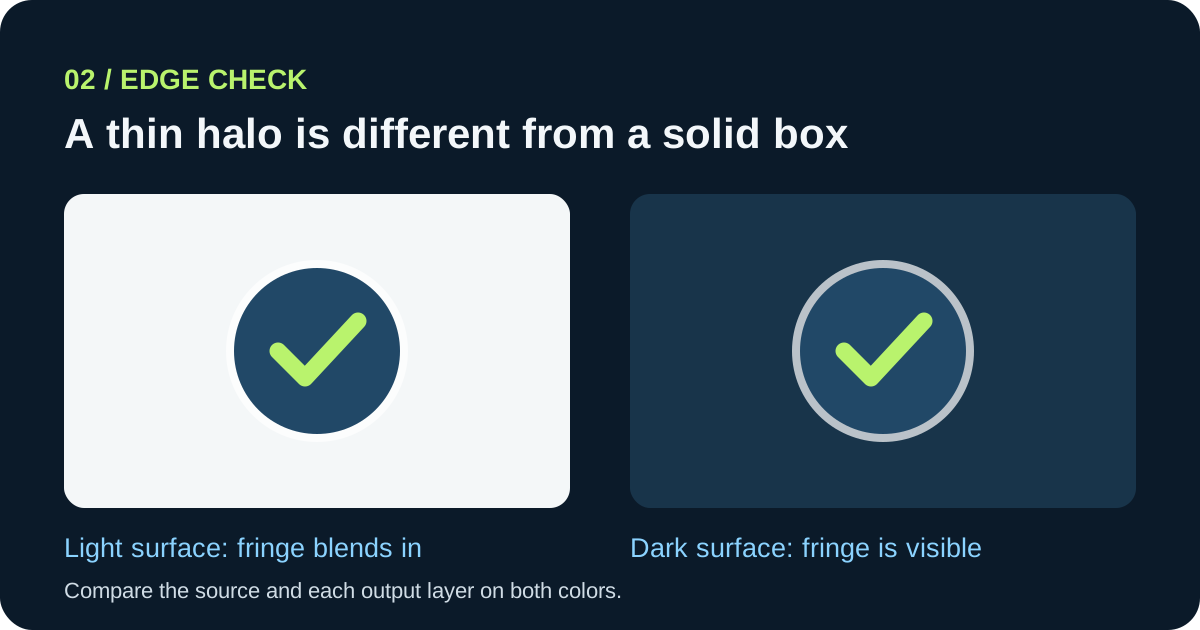
A solid white rectangle and a thin light fringe are different symptoms. A fringe often becomes obvious only when semi-transparent edge pixels are composited on a dark surface. Preview the original artwork against dark and light colors before changing conversion settings.
If the fringe is already in the source, clean its edge pixels in the artwork editor and export again. If it appears only in a reduced ICO layer, simplify the silhouette or draw a small-size variant specifically for that layer. A larger output size cannot recover detail that was lost in the source.
Check the smallest layer you will actually ship
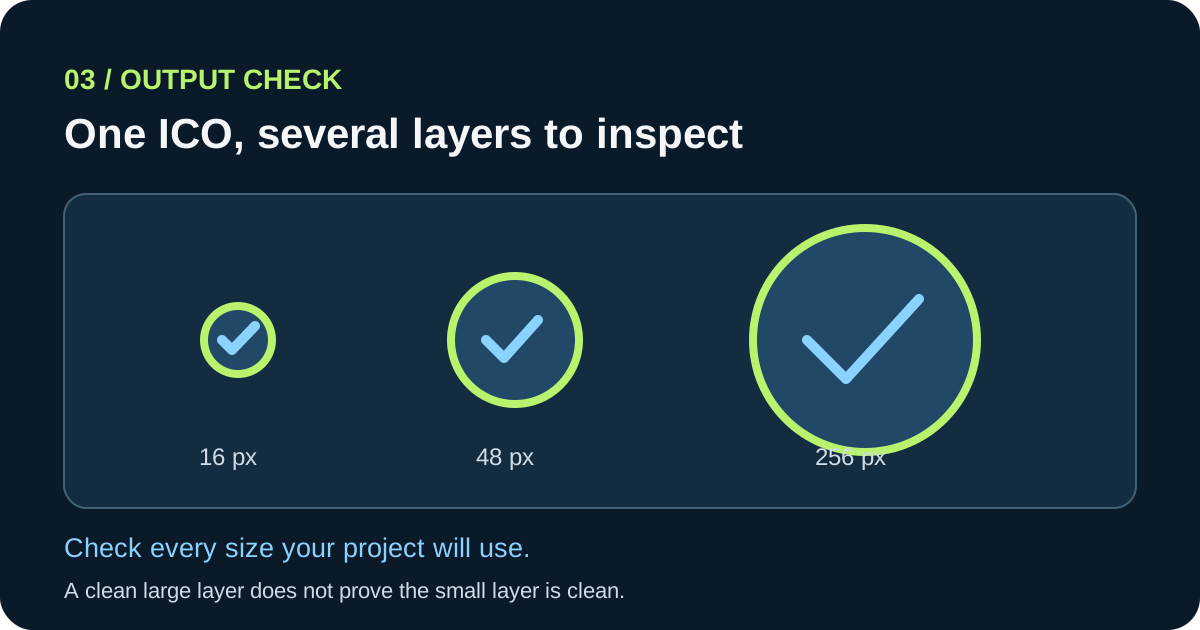
An ICO can hold several images. Inspecting only its largest image can hide a problem in a smaller one. Open each size your project requires and compare the same corner and edge in every layer.
For this site's converter, a non-square source is centered in a square transparent canvas. The extra space should therefore be transparent, but any white pixels inside the original image remain part of the artwork. This is why testing the source and testing the exported layer are both necessary.
A three-stage transparency check
- 01Test the source PNG
Open the PNG in an editor that shows transparency, then preview it on both a dark and a light fill. If the corners remain white on both, remove the background in the source artwork and export a new PNG.
- 02Convert without a background fill
Choose the ICO sizes you need and leave any optional background-color setting off. On pngtoicotool, the canvas is cleared before the image is drawn, so transparent source pixels can remain transparent in the generated layers.
- 03Inspect the output by layer
Open the ICO in an icon viewer or use the site's ICO to PNG tool to inspect one layer at a time. Check a small and a large layer against both background colors before using the file.
FAQ
PNG to ICO transparency questions
Does a PNG file always have a transparent background?
No. PNG supports transparent and opaque images. Check the pixel content instead of relying on the filename or an editor's checkerboard preview.
Why does the ICO look fine on white but show a border on dark?
Light or partially transparent pixels around the artwork can blend into a white preview and stand out on a dark one. Compare the source and each ICO layer on both colors to find where the border appears.
Can an ICO contain transparency and several sizes?
Yes. Microsoft documents icon resources with multiple images and optional per-pixel alpha transparency. Check the individual images because a good large layer does not prove every small layer looks right.
Will renaming .png to .ico preserve transparency?
Renaming does not create an ICO container or repair pixel data. Export a real ICO and inspect its contents.