Mobile icon converter
Mobile Icon Converter: Save an ICO from Your Phone
A mobile icon converter should let you choose an image in your phone browser, make one .ico, and save that file back to the device. Open the PNG-to-favicon tool, choose one picture, keep the ICO layers you need, tap Convert to ICO, then use the browser's download controls. On iPhone, check Files → Browse → Downloads; on Android, check Chrome → More → Downloads or the Files app. This workstation run measured desktop Chrome only; iPhone Safari and Android Chrome were not physically tested.
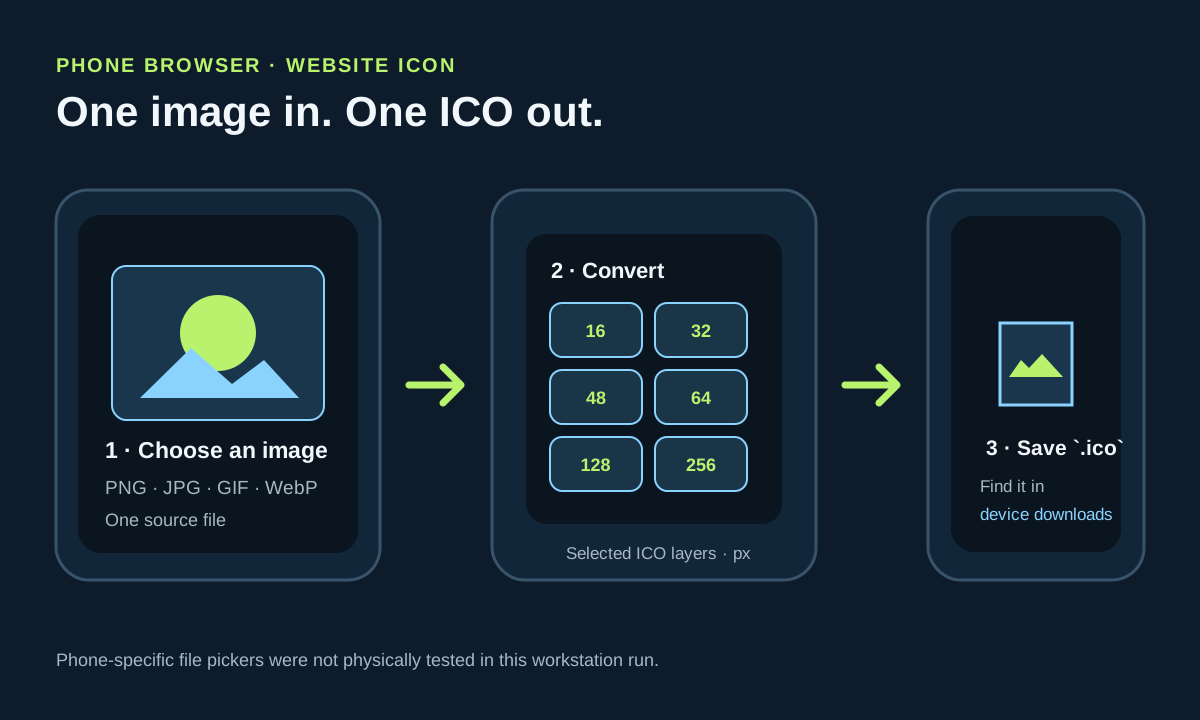
For a quick mobile icon conversion, open the converter, select a prepared PNG, JPG, GIF, or WebP, choose the ICO layers, and download the single .ico file. On this machine, one 256 × 256 synthetic PNG produced a six-entry ICO of 24,163 bytes; the directory entries were 16, 32, 48, 64, 128, and 256 pixels. That is one Windows Chrome run, not a phone result. The output is a website ICO, not an iOS or Android app-icon package.
Device boundary: the conversion was run in Chrome 155.0.8059.80 on Windows 11 Pro build 22631. The phone-specific Safari and Android Chrome picker and save sheets were not tested on physical devices. Their download-location steps below follow Apple and Google support guidance.
What this mobile icon converter makes
This workflow makes a website favicon file from one image. It does not export an iOS `AppIcon.appiconset`, an Android `mipmap-*` tree, or a Play Store package. Those are separate app-development deliverables. If you need a store or launcher icon set, choose a generator that explicitly exports those platform files; an ICO download is not a substitute.
The Google results for this query mostly presented app-icon generators and resizers. Their visible descriptions emphasize platform-sized PNGs, ZIP files, Xcode asset catalogs, Android density folders, or app-store assets. This page answers the narrower phone-browser task: create one website `.ico`, then find the download on the same device.
iPhone Safari: locate the downloaded ICO
Open the converter in Safari, select a picture through the file chooser, and start the conversion. When the browser reports the download, open Files, tap Browse, and look in Downloads. Apple's iPhone guide also points to Safari's Downloads button beside the search field for a recent file. The exact chooser and save-sheet appearance can vary with iOS and the selected file provider.
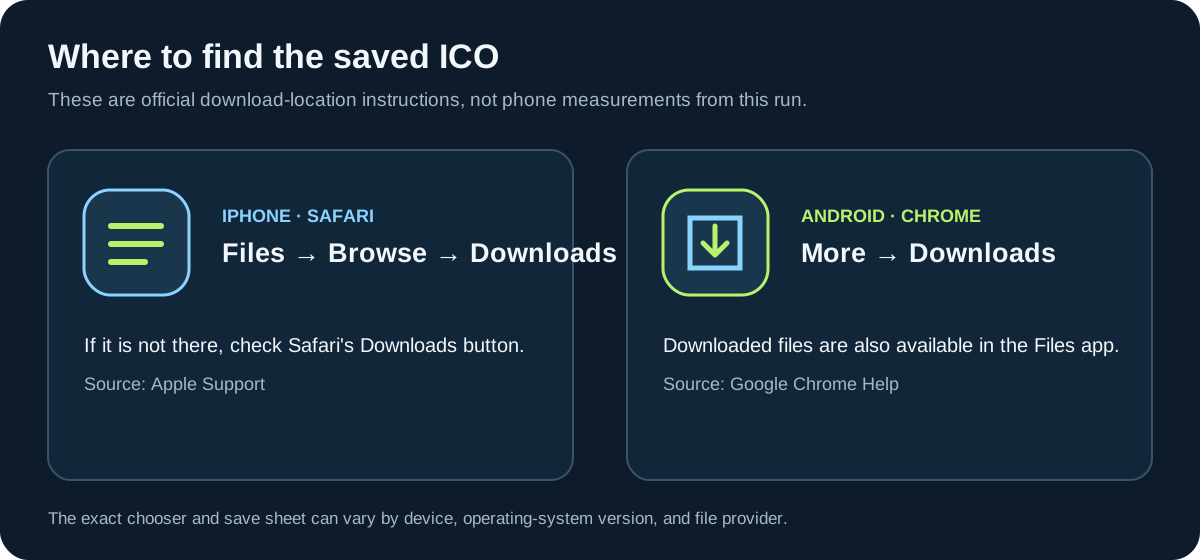
This page did not run a physical iPhone or measure whether every iOS version presents a separate Save to Files sheet for a browser-generated ICO. If the file is not visible, check Safari's download list first, then the Downloads folder shown under Files. Do not infer a successful conversion solely from the preview; confirm that the `.ico` file appears in the download list.
Android Chrome: reopen the download
In Chrome on an Android phone or tablet, choose the source image, convert it, and then open More → Downloads to find the completed file. Google also directs users to the Files app to view downloaded items. If Chrome's address bar is at the bottom, Google notes that the Downloads entry may be reached by swiping up on that bar before opening Downloads.
The Android steps here describe Google's documented download navigation. This workstation has no attached Android handset, so it did not measure a mobile chooser, tap target, cellular transfer, or phone storage result. The desktop browser test below proves only that the converter produced the recorded ICO on this Windows machine.
One desktop Chrome download, decoded
I generated a synthetic 256 × 256 PNG, opened the live converter in the machine's Chrome, selected that file, left all six size controls checked, converted it, and inspected the saved ICO directory. Chrome displayed the selected source as 256 × 256 pixels and 5.5 KB; the exact PNG length on disk was 5,660 bytes. The saved ICO was 24,163 bytes and its directory contained six image entries.
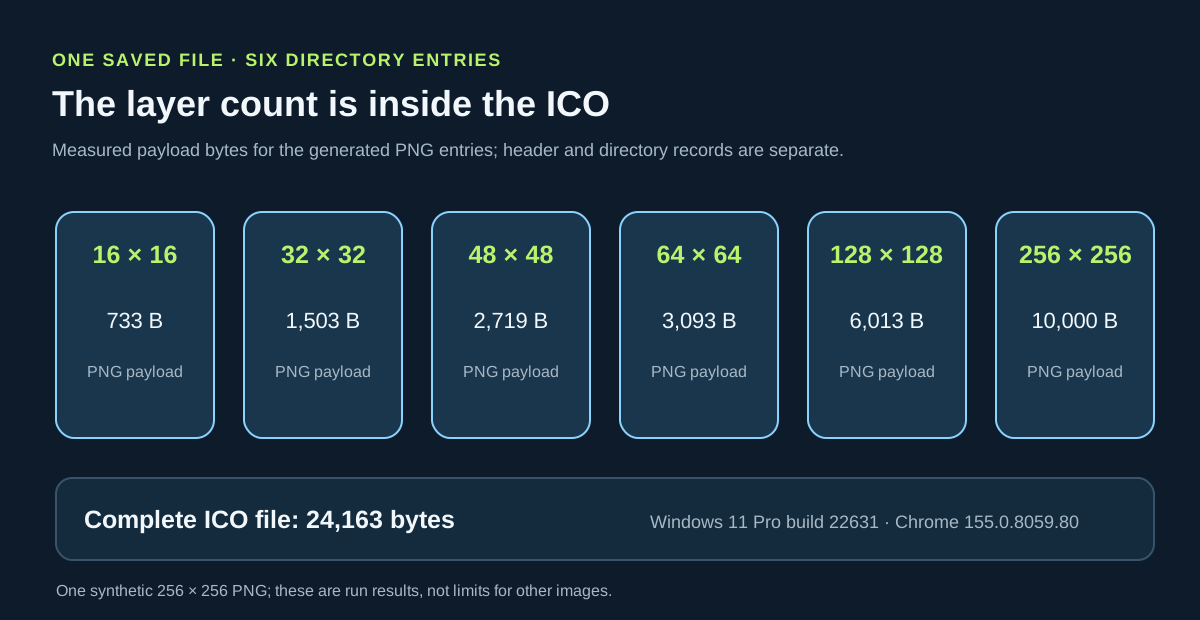
The embedded payload lengths were 733, 1,503, 2,719, 3,093, 6,013, and 10,000 bytes for the 16, 32, 48, 64, 128, and 256 pixel entries, respectively. These are directory-entry byte counts, not the complete file size for each image: the ICO also has a header and entry records. The combined download is the single 24,163-byte file, not the sum of those payloads alone.
The directory accounting cross-checks the full file: six payloads sum to 24,061 bytes, and the ICO header plus six 16-byte directory records use another 102 bytes (6 + 6 × 16). Those parts add to the measured 24,163-byte download. This is a breakdown of this saved file, not a claim that every converter output has the same fixed overhead.
The 256-pixel entry accounts for 10,000 of the 24,061 payload bytes, or 41.6% (10,000 ÷ 24,061). The 16-pixel entry is 733 bytes. If only the 256-pixel layer were selected in this run, the remaining directory entries and their payloads would be absent; the browser tool instead saved all six because all six controls stayed selected. This explains why the whole ICO is larger than its largest image payload.
For a repeatable comparison, use the included 5,660-byte PNG, open `pngtoicotool.com/png-to-favicon` in desktop Chrome, leave the six default size controls selected, and choose Convert to ICO. The download should be named `mobile-workflow-source.ico`; inspect its ICO directory rather than trusting the filename or preview. In this run the complete output was 4.27 times the source PNG length (24,163 ÷ 5,660), an observation for this synthetic sample only, not a general size ratio.
The run used Windows 11 Pro build 22631 and Chrome 155.0.8059.80 on 2026-10-17. The output was read from the downloaded ICO's directory table. No iPhone, Android, Safari, or Chrome-for-Android measurement is included. The input PNG, output ICO, and per-entry CSV below let a reader inspect the exact sample and recompute the byte totals.
Use the right icon workflow
Use this mobile icon converter when the goal is one `.ico` file for a website and the source image is already prepared. Use a platform app-icon generator when the output must include Apple or Android project files. Use the separate favicon HTML guide when you already have the icon file and need to point a web page at it.
For the general image-to-ICO workflow and layer selection, see the favicon maker guide. For the markup that references a finished icon file, see the favicon HTML guide.
Local browser conversion: saved ICO directory
One synthetic 256 × 256 PNG was selected in the live PNG-to-favicon tool on this workstation. The browser saved one ICO; its six directory entries were read from the downloaded bytes.
| Entry | Embedded dimensions | Image payload bytes |
|---|---|---|
| 1 | 16 × 16 px | 733 |
| 2 | 32 × 32 px | 1,503 |
| 3 | 48 × 48 px | 2,719 |
| 4 | 64 × 64 px | 3,093 |
| 5 | 128 × 128 px | 6,013 |
| 6 | 256 × 256 px | 10,000 |
Measured on Windows 11 Pro build 22631 with Chrome 155.0.8059.80 on 2026-10-17. Source PNG: 5,660 bytes. Complete ICO: 24,163 bytes. Physical iPhone Safari and Android Chrome tests were not run.

Convert and find the file
- 01Choose one prepared image
Open the converter and tap the file chooser. Select one PNG, JPG, GIF, or WebP from the location offered by your phone. The tool accepts one source image at a time; it does not create artwork or a bundle of app-store assets.
- 02Keep the ICO layers you want
The converter starts with 16, 32, 48, 64, 128, and 256 pixel layers selected. Leave the defaults for a general website ICO, or deselect sizes you do not want. The download is still one `.ico` file.
- 03Convert, then check the browser download
Tap Convert to ICO and wait for the download confirmation. On iPhone Safari, Apple documents downloaded files in Files → Browse → Downloads; the Safari Downloads button can also reopen the recent download list. On Android Chrome, open More → Downloads, or locate downloaded files in the Files app. These are documented file locations, not a claim that this run exercised either phone interface.
- 04Check the file before using it
Keep the `.ico` extension and open the file with an ICO-aware viewer or decoder if you need to confirm its entries. A filename alone does not show which sizes were embedded. The test below records the directory entries and file bytes for one real browser download.
FAQ
Mobile icon converter questions
Does this make iPhone or Android app icons?
No. It downloads one website ICO file. iOS app icon catalogs and Android launcher or store icon sets are different outputs.
Where does Safari put a downloaded ICO on iPhone?
Apple documents internet downloads in Files → Browse → Downloads. Safari's Downloads button can show a recent download. This page did not test a physical iPhone.
Where are Chrome downloads on Android?
Google's Chrome Help says to open More → Downloads; downloaded files can also be viewed in the Files app. This page did not test a physical Android phone.
How many ICO sizes did the local run create?
The single 24,163-byte output contained six entries: 16, 32, 48, 64, 128, and 256 pixels. This was measured in desktop Chrome on Windows 11, not on a phone.
Can I convert a photo directly from my phone?
The tool's chooser accepts one PNG, JPG, GIF, or WebP image. The phone-specific picker and save behavior were not physically tested here; choose the file through your browser and verify the resulting ICO in its download list.