Favicon maker
Favicon Maker: Make and Check a Favicon ICO
A favicon maker turns prepared artwork into a browser icon file. This tool converts one PNG, JPG, GIF, or WebP image into one ICO; it does not draw a logo or add color filters.
Make a favicon ICO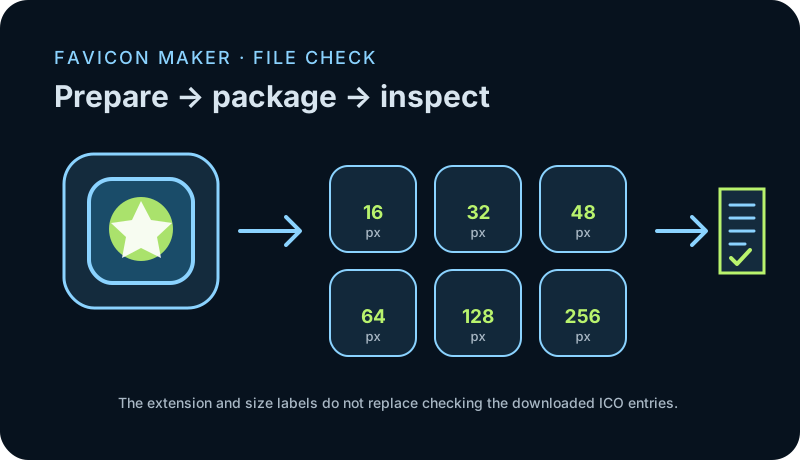
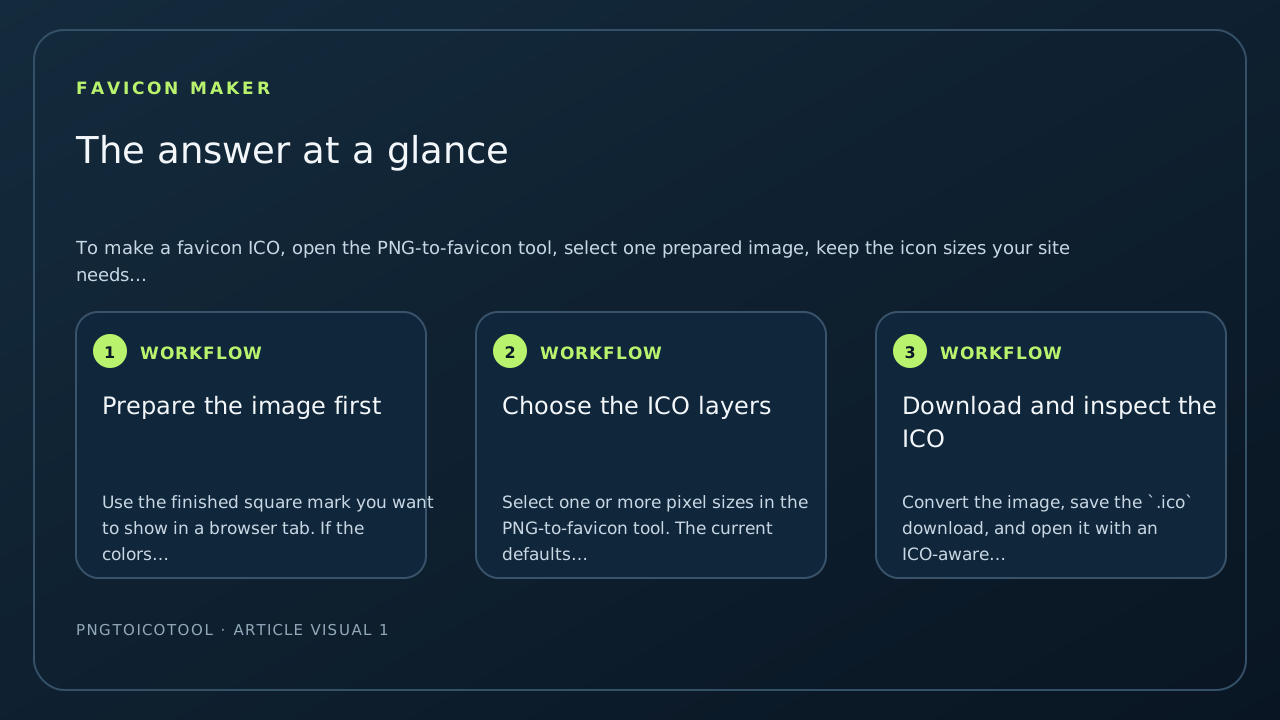
To make a favicon ICO, open the PNG-to-favicon tool, select one prepared image, keep the icon sizes your site needs, and convert it. Save the download as favicon.ico, then inspect the file to confirm its embedded images. In a local test of this tool, all four accepted input formats produced six ICO layers, but the saved bytes and transparency depended on the source format.
The comparison below used one synthetic 256 × 256 drawing, one default six-layer conversion per input format, a local copy of the site, Chrome 141.0.7390.98, and Pillow 12.3.0 for file decoding. It is a single controlled sample, not a rule for every source image.
A favicon maker packages an image; it does not design one
Start with the mark already prepared. A converter can resize and package the source into a browser icon file, but it cannot decide what your logo should look like or create missing artwork. If the drawing needs a tint, a color overlay, a crop, or a new silhouette, edit the source image before opening the maker.
That boundary appeared in a real icon-maker discussion: a commenter asked for overlay or filter controls in a simple ICO utility. It is an image-editing request, which sits before conversion. Use an editor for the change, save a new PNG, then convert that saved image to favicon.ico. This converter has no overlay or filter control.
One drawing through four accepted image formats
I drew one synthetic transparent icon and saved it as PNG, JPEG, GIF, and lossless WebP. I loaded each file into a local copy of the site, left the six default sizes selected, downloaded the ICO, and decoded its frames. The source pixels were deliberately the same design; JPEG flattened transparency onto white, while GIF could store only a binary transparent palette entry.
Every download contained the same six dimensions: 16, 32, 48, 64, 128, and 256 pixels. The ICO byte totals did not follow the input byte totals: the JPG source was smaller than the PNG, yet its ICO was larger. The run records actual files, hashes, and alpha counts so the result can be checked rather than inferred from a page label.
The format changed the downloaded pixels
The JPG output had no transparent pixels across its six decoded layers because its source had already been composited onto white. The PNG and lossless WebP outputs had matching aggregate alpha counts in this run, although their ICO hashes and byte lengths differed. The GIF source had no partially transparent pixels, but the resampled ICO layers did: edge pixels gained intermediate alpha during scaling.
That distinction changes what you check after conversion. If the favicon should have a transparent edge, do not judge only by the ICO extension or the browser preview. Open the saved file, inspect its layer dimensions, and decode alpha in the layer that will be displayed. The counts below belong to this drawing and this local run; they are not pass/fail thresholds for another logo.
When this tool is the right favicon maker
Use this tool when you already have a supported image and need a single `.ico` file with selected square layers. It processes that source locally in the browser and returns one ICO. If you need a new illustration or a recoloring pass, make that change in an image editor first. If your next question is how to reference the file from a web page, use the separate favicon HTML guide below.
Files decoded after local conversion
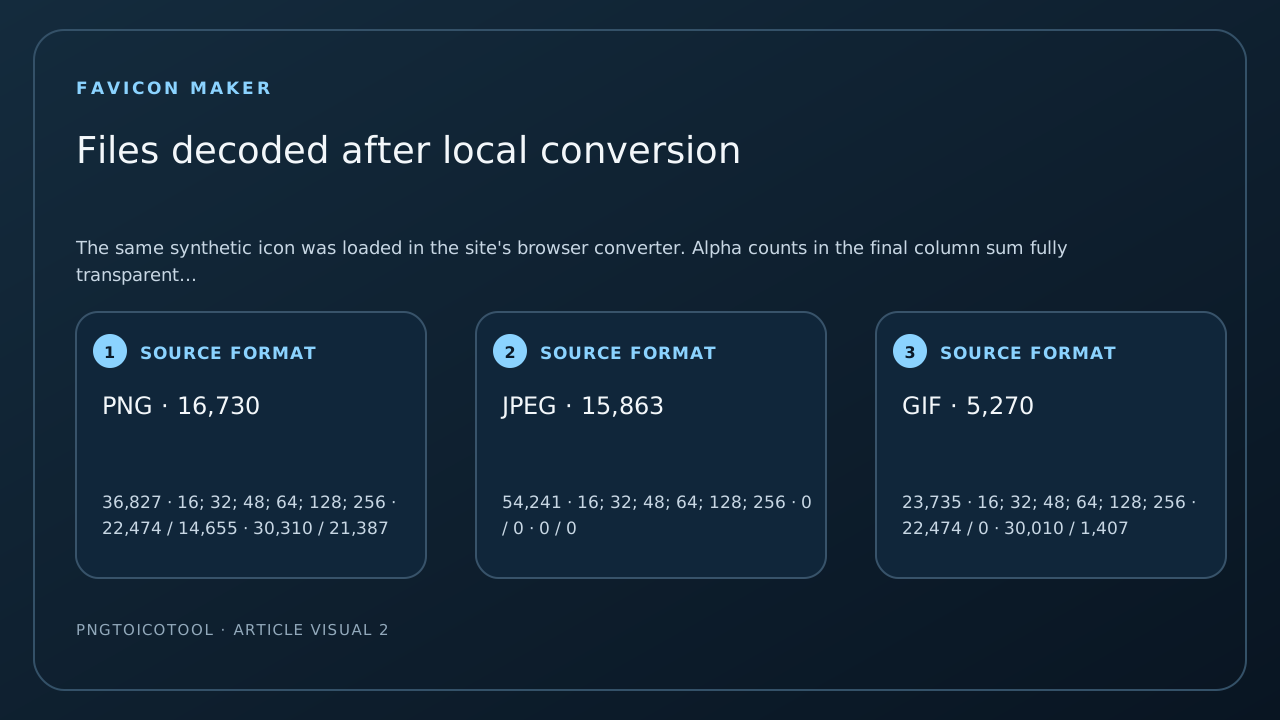
The same synthetic icon was loaded in the site's browser converter. Alpha counts in the final column sum fully transparent pixels across all six downloaded ICO layers.
| Source format | Source bytes | Downloaded ICO bytes | ICO layers | Source alpha: transparent / partial | ICO alpha: transparent / partial |
|---|---|---|---|---|---|
| PNG | 16,730 | 36,827 | 16; 32; 48; 64; 128; 256 | 22,474 / 14,655 | 30,310 / 21,387 |
| JPEG | 15,863 | 54,241 | 16; 32; 48; 64; 128; 256 | 0 / 0 | 0 / 0 |
| GIF | 5,270 | 23,735 | 16; 32; 48; 64; 128; 256 | 22,474 / 0 | 30,010 / 1,407 |
| Lossless WebP | 10,200 | 37,037 | 16; 32; 48; 64; 128; 256 | 22,474 / 14,655 | 30,310 / 21,387 |
One synthetic 256 × 256 source design, one local browser conversion per format, six default sizes, one decoder run. Alpha counts sum pixels across layers, so they are not counts of unique source pixels.

Create the favicon file
- 01Prepare the image first
Use the finished square mark you want to show in a browser tab. If the colors, crop, or artwork need editing, do that before conversion; this maker packages pixels but does not paint or recolor them.
- 02Choose the ICO layers
Select one or more pixel sizes in the PNG-to-favicon tool. The current defaults are 16, 32, 48, 64, 128, and 256 pixels; keep only the layers your destination needs.
- 03Download and inspect the ICO
Convert the image, save the `.ico` download, and open it with an ICO-aware viewer or file decoder. Confirm that the intended dimensions are present before putting the file on your site.
FAQ
Favicon maker questions
Can I make a favicon from a PNG?
Yes. Select the PNG in the PNG-to-favicon tool, choose the ICO image sizes, convert it, and save the resulting `.ico` file.
Does a favicon maker add color or draw my logo?
This converter does not edit or draw the artwork. Apply color, filters, or a crop to the source image first, then convert the finished image.
Does the `.ico` extension prove that my icon is transparent?
No. Check the downloaded ICO frames. In this test the JPG input produced opaque layers, while the PNG and WebP sources retained transparent and partially transparent pixels.
Does one favicon ICO create the HTML for my site?
No. The file and its HTML reference are separate steps. Add a `link rel="icon"` element to the page head and make sure its `href` resolves to the deployed file.