Shopify favicon
Shopify Favicon: Add It to the Right Store Surface
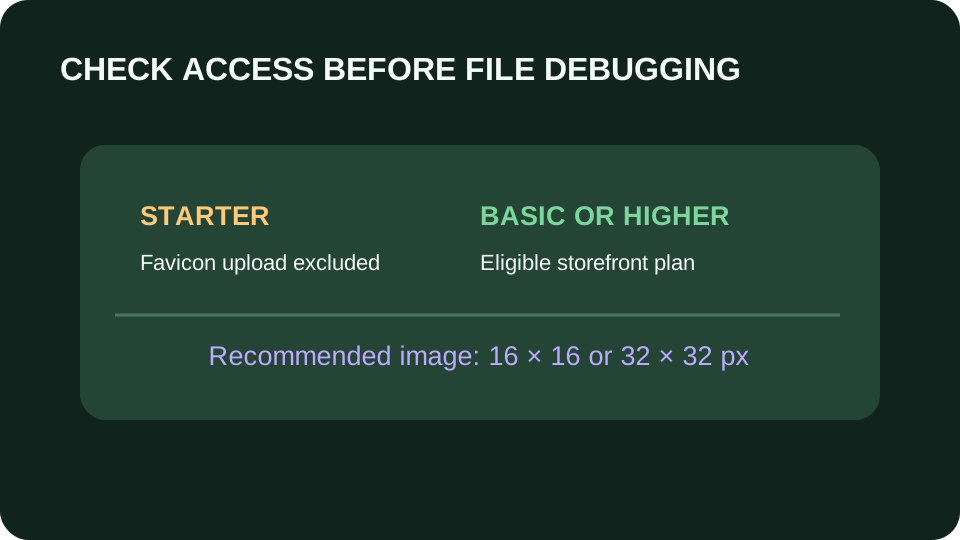
To add a Shopify favicon, open Online Store → Themes → Edit theme → Theme settings, choose Logo or Favicon, select the image, and save. The feature is available on Basic or higher (and qualifying Agentic plans), not Starter; Shopify recommends a 16 × 16 or 32 × 32 image.
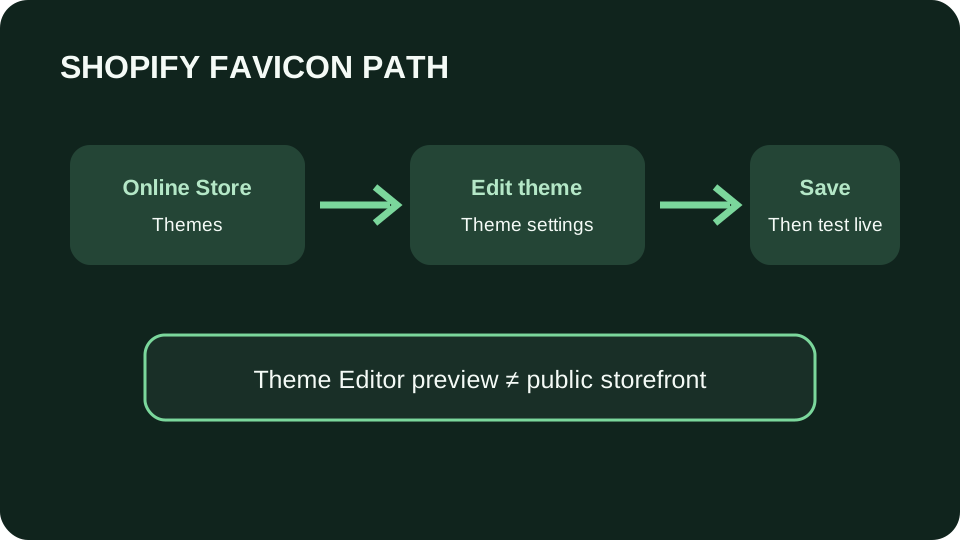
In Shopify admin, go to Online Store → Themes, edit the theme, open Theme settings, then choose Logo or Favicon and select the favicon image. Click Done and Save. Check the live storefront outside Theme Editor: Shopify says the editor does not reflect the live store’s favicon. A theme favicon also does not automatically set Customer Accounts or Checkout icons.
Shopify favicon upload: plan, theme, and save
Shopify allows a storefront favicon on Basic or higher, or on an Agentic plan when building an online store. The Starter plan does not include this setting. Shopify’s stated ideal sizes are 16 × 16 and 32 × 32 pixels; an image that is too large is reduced to 32 × 32 when uploaded.
The desktop route is Online Store in admin, Edit theme for the theme you intend to use, gear icon for Theme settings, then Logo or Favicon depending on theme version. Select or upload the image, click Done, and click Save. This setting belongs to the theme, so confirm you edited the storefront theme you intend customers to see.
Four surfaces that look like one Shopify favicon
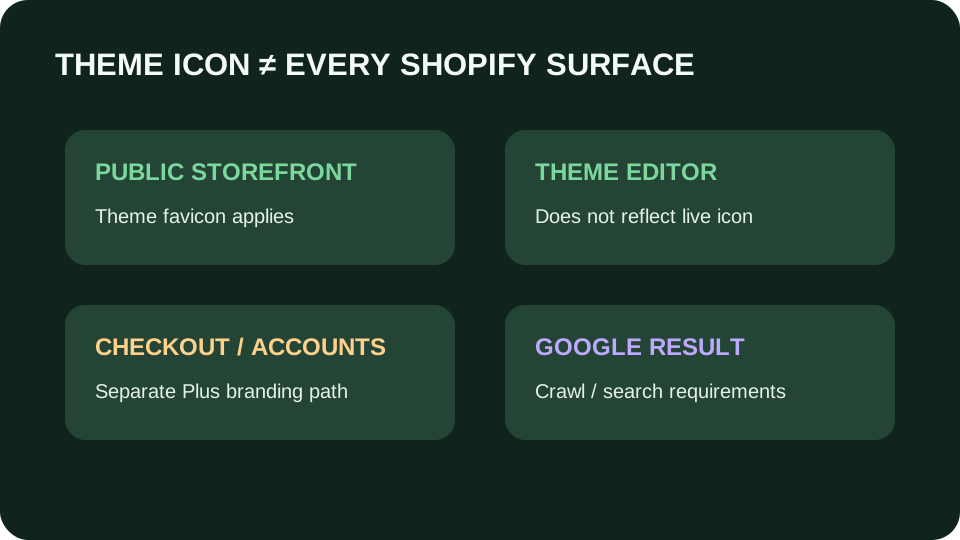
The word “store” can hide four different checks: the public storefront, the Theme Editor preview, checkout, and Customer Accounts. The following map keeps the expected scope attached to each view. It prevents a correct theme save from being judged by an editor preview or by a separate checkout area.
Record the first failing check before changing the image
Make one record for one saved image: the date, the edited theme name, whether that theme is published, the public store URL, and the file you selected. Then take four observations without changing the file: the tab icon on the public home page in a fresh browser context, the editor tab, a checkout or Customer Accounts tab if relevant, and a Google result for the same hostname. Write present, old, or absent beside each observation. This produces a useful comparison even when the owner cannot inspect theme code; it also prevents a new upload from erasing the evidence of which surface first diverged.
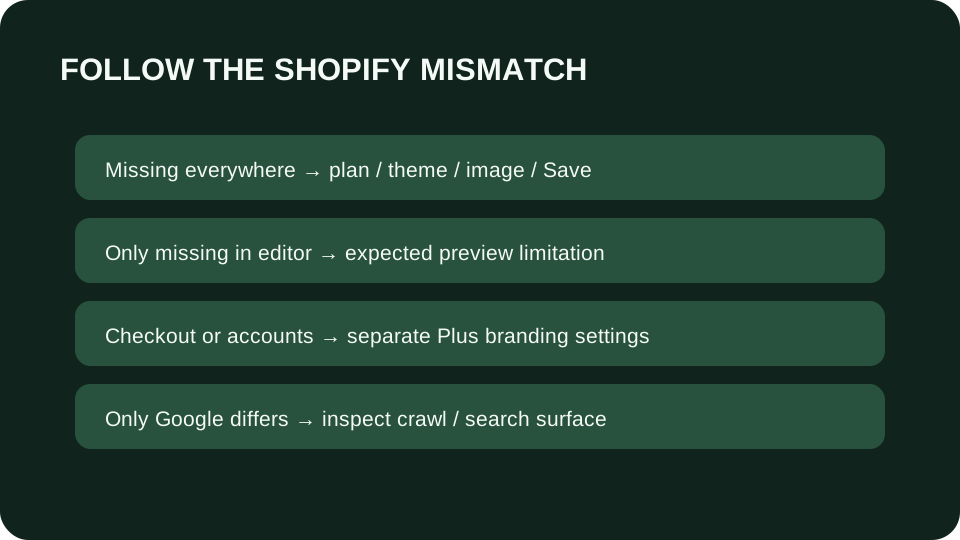
Interpret the record in order. If the public store is absent in a fresh context, check plan access, the published theme, the selected image, and the final Save action. If public is present and editor is absent, stop treating the editor as a failed storefront check: Shopify says that preview is part of admin. If public is present and checkout differs, label the issue checkout branding and verify Plus eligibility before involving a developer. If public is present and only Google's result differs, preserve the working store image while checking Google separately. These branches are a diagnostic procedure, not a claim that the four surfaces will show matching icons.
Do not mistake Google's 48-pixel preference for a Shopify upload failure
Shopify's recommended upload is 16 × 16 or 32 × 32, and it says larger uploads are reduced to 32 × 32. Google's search documentation allows a square favicon as small as 8 × 8 but recommends more than 48 × 48 for appearance across its surfaces. A 32-pixel Shopify output therefore falls below a recommendation, not below Google's stated minimum. It is inaccurate to conclude from size alone that Google must reject the icon. Do not promise that uploading a 96-pixel source through the same Shopify field will create a 96-pixel served icon; Shopify documents the reduction.
For a search-only complaint, first confirm the public homepage points to a reachable favicon and that both the homepage and icon file can be crawled by Googlebot and Googlebot-Image. Keep the icon URL stable while Google recrawls; Google says its processing can take days to weeks and display is never guaranteed. Record the hostname being searched, since Google treats different hostnames as different sites for favicon purposes. If a merchant needs a larger served icon for a particular theme, that is a separate theme-code decision with developer review, not an instruction to repeat the native upload. This sequence isolates a search concern without undoing an already-correct storefront tab.
Worked example: a tab icon that changed but a customer still reports the old mark
Suppose a merchant saves a new icon in the published theme on Monday. In a fresh browser context, the public storefront tab shows the new mark; the Theme Editor tab shows no store icon; the checkout tab shows an older mark; and a Google result shows the old mark. Record those as four observations, not one failed upload. The public result establishes that the theme setting reached the live storefront. The editor observation is expected under Shopify's documented behavior. The checkout observation calls for a separate plan and branding check. The search observation calls for its own homepage, icon URL, crawler, and recrawl checks. Changing the same theme image again would add a second variable without resolving either separate surface.
Now change only one observation in the example: the public storefront tab also shows the old mark in a fresh context. The first question becomes whether the edited theme is the published theme and whether Save completed. Keep the original file and record the theme name before another upload. If the published theme and saved file are correct, inspect the public homepage's icon reference and the URL it actually serves; do not infer its target from an unrelated /favicon.ico address. This example is a decision exercise, not a measured Shopify store test. Its value is the order of checks: establish the live storefront result, then branch to the system responsible for the remaining mismatch.
A concise handoff to a teammate can read: ‘On [date], theme [name] was published with file [name]. The public home page at [hostname] showed [new/old/absent] in a fresh browser context; Theme Editor showed [state]; checkout showed [state]; Google showed [state]. The first mismatch outside the public store is [surface].’ Attach the saved image and the public URL, not merely an editor screenshot. This record gives a developer or support agent a reproducible starting point and makes it clear whether the requested fix belongs to theme settings, Plus checkout branding, or Search. Do not fill an untested field with a guess; mark it not checked.
| Surface | Does the theme favicon control it? | Diagnostic |
|---|---|---|
| Public storefront | Yes, for the edited theme | Open the live store outside admin |
| Theme Editor | No; editor does not reflect live favicon | Use a separate storefront tab |
| Checkout / Customer Accounts | Not automatically | Shopify Plus branding uses Branding API or Checkout Blocks |
| Google result | Not guaranteed by theme save | Check crawl and search result rules separately |
For fixing a Shopify favicon that is not showing, see the [fixing a Shopify favicon that is not showing](favicon-not-showing).
Add and verify the storefront icon
- 01Confirm plan and prepare the image
Use Basic or higher, or an eligible Agentic plan with an online store. Starter does not include favicon upload. Shopify recommends 16 × 16 or 32 × 32 pixels; oversized uploads are reduced to 32 × 32.
- 02Set the favicon in theme settings
In Online Store > Themes, click Edit theme for the intended theme. Open Theme settings, choose Logo or Favicon (the label depends on theme version), select the image, click Done, then Save.
- 03Verify the public storefront
Open the store in a separate browser tab or private window, not only the Theme Editor. If the tab icon works but checkout does not, treat that as a separate surface with separate Shopify requirements.
FAQ
Shopify favicon questions
Where is the favicon setting in Shopify?
In Shopify admin, go to Online Store > Themes, click Edit theme, open Theme settings, then choose Logo or Favicon depending on the theme version. Select the image, click Done, and Save.
Why can’t I add a favicon on Shopify Starter?
Shopify’s current help page says favicon upload is available on Basic or higher, or eligible Agentic plans with an online store; Starter is excluded.
Why is my Shopify favicon missing in Theme Editor?
Shopify says favicons do not display in the Theme Editor because that editor is part of admin and does not reflect the live storefront. Check the published storefront in a separate tab.
Does my Shopify theme favicon apply to checkout?
No. Shopify says Customer Accounts and Checkout do not automatically inherit it. Shopify Plus stores can configure those surfaces with the Branding API or Checkout Blocks.
What size should a Shopify favicon be?
Shopify lists 16 × 16 or 32 × 32 pixels as ideal. It reduces an oversized uploaded favicon to 32 × 32 pixels.
Does Shopify's 32-pixel icon fail Google's size rule?
Not automatically. Google states an 8 × 8 minimum and recommends more than 48 × 48 for appearance. Check the live icon URL, crawler access, hostname, and recrawl status before attributing a missing search icon to size.