Wix favicon
Wix Favicon: Add It and Diagnose Where It Fails
To change a Wix favicon, publish the site first and confirm a Premium plan and connected domain. In its dashboard, open Settings → Website settings → Upload Image under Favicon, choose the file, and check the public site. Treat a missing Google search icon as a separate check; for a store on another platform, use the Shopify favicon route instead of Wix's dashboard steps.
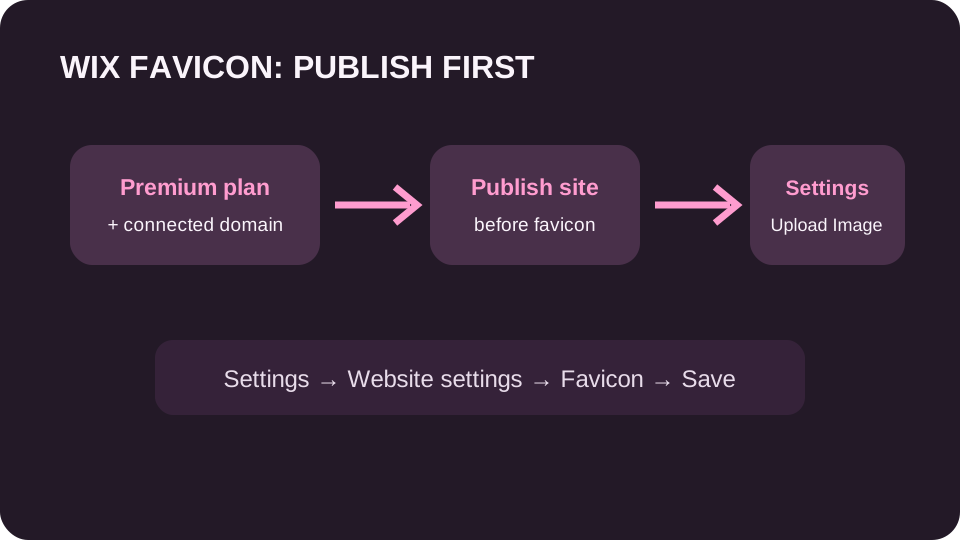
Publish your Wix site first, and confirm its Premium plan and connected domain. In the dashboard, open Settings, then Website settings, and click Upload Image under Favicon. Choose a suitable ICO, PNG, JPG, or SVG, click Choose File, then Save. For a non-SVG image, Wix requires a square size that is a multiple of 48 pixels. Check the public browser tab separately from Google Search; a successful Wix upload does not guarantee a search favicon.
Wix favicon requirements before the upload
Wix requires a Premium plan and a connected domain for a custom favicon. The site must be published before the favicon can be added. Its dashboard route is Settings → Website settings → Upload Image under Favicon.
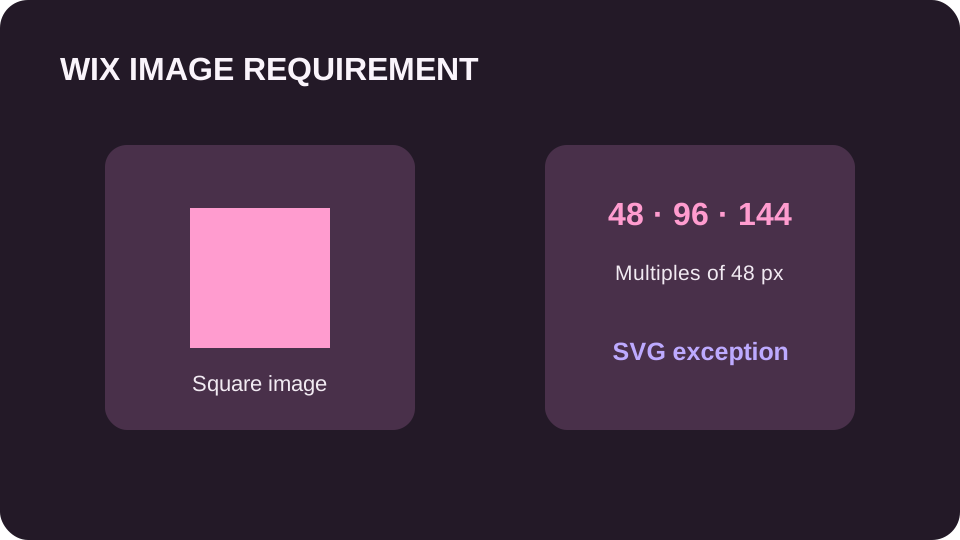
The supported image formats listed by Wix are ICO, PNG, JPG, and SVG. For raster or ICO artwork, the favicon must be square and each side must be a multiple of 48 pixels, such as 48 × 48 or 96 × 96; SVG is the stated exception. Wix notes that Google rescales a favicon for search display, but Google decides whether and when it appears.
Separate the Wix setup gate from the display result
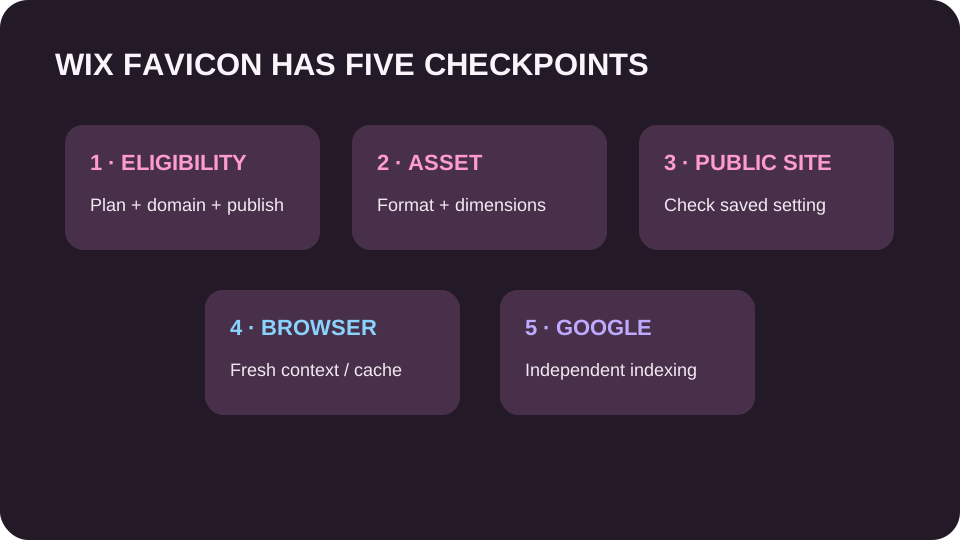
A Wix favicon problem can occur before upload, at upload, on the public site, in the browser, or in Google. This diagnostic sequence ties each symptom to the check that can answer it. It is especially useful when the default Wix icon remains: first confirm that the account and site qualify, then confirm the selected image and saved setting before investigating browser or search behavior.
Wix favicon troubleshooting path
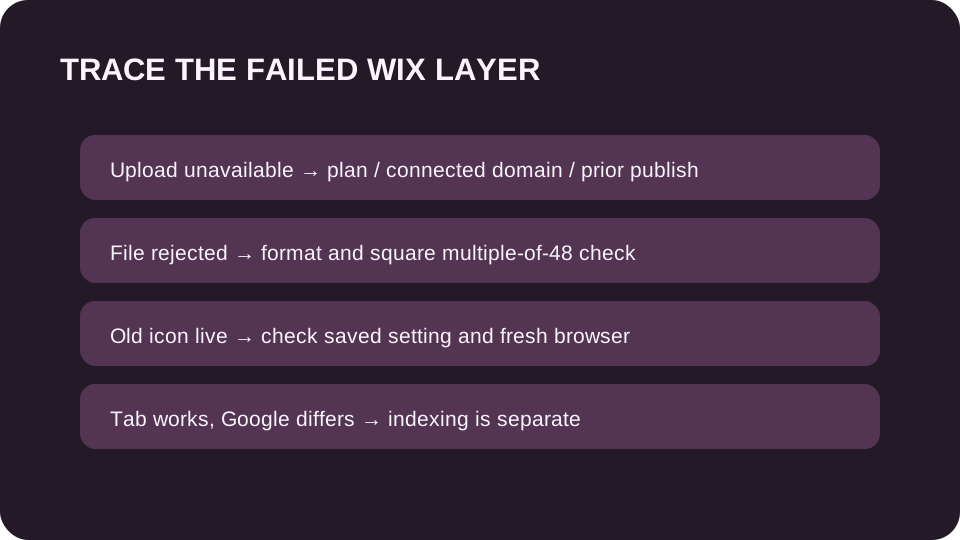
If Upload Image is unavailable, verify the Premium plan, connected domain, and prior published state before editing the file. If the picker accepts the file but the icon does not look right, check the actual image dimensions: a 47 × 47 PNG is not the documented 48-pixel multiple, while SVG follows a separate exception. Confirm the selected image is the one intended for this site.
After choosing the file, open the public URL in a fresh browser context. If that browser shows the custom icon but an existing tab does not, test cache behavior before replacing the image. If the browser tab is correct but Google still displays a generic or older icon, Wix says indexing and search results are at Google’s discretion; changing the site setting again cannot guarantee a search-result refresh.
A Wix favicon is not the same as a search guarantee
Use a browser tab on the published custom domain to confirm the site-level setting. Use the dashboard to confirm the upload and published state. Use Google’s favicon documentation and crawl tools only when the search-result icon is the failing surface. This keeps a successful upload from being misread as a promise about search appearance.
For a clean diagnosis, write down the Wix state before changing anything: plan, custom-domain connection, whether the site had already been published, selected file format and dimensions, and the time of the upload. Then change only the step implicated by the symptom. An unavailable Upload Image control sends you to plan/domain/publish eligibility. A file-specific rejection sends you to the asset. A dashboard selection that differs from the public URL sends you to the live-site check. A correct fresh browser tab with an old existing tab suggests browser storage. A correct tab with a missing Google icon points to search investigation, not another Wix upload. Keep the same file while moving through the sequence so each observation narrows the cause.
A one-file test you can hand to support
Start with one image and one published Wix hostname. Record the file name, its actual pixel dimensions, its format, the dashboard's selected image, and the URL you opened. Mark each of three observations as new, old, absent, or not checked: the public home page in a fresh browser context, the tab that was already open, and a Google result for that same hostname. Do not combine those observations into a single ‘favicon failed’ report. The first difference determines the next owner of the problem.
For example, suppose a 96 × 96 PNG is selected in Wix, the new icon appears on a fresh public tab, the old icon stays on a tab opened yesterday, and Google still shows the generic mark. These are hypothetical observations, not a test of a real Wix account. The fresh tab establishes that the live site can display the selected icon. Compare the older tab in another fresh context before changing the upload. For Google, inspect the home page's actual icon link and its destination, and check crawler access to both. Requesting a home-page recrawl can start another check, but Google says processing may take days to weeks and display is not guaranteed.
Now change only the first observation: the fresh public tab still shows the Wix default icon. The search result is no longer the first failing surface. Verify that the custom domain being opened is attached to the same Wix site where the image was chosen, and recheck the dashboard selection for that site. Record the public hostname exactly; a Wix editor or dashboard preview is not a substitute for the public URL. This controlled second case tells a teammate which site and hostname to inspect without asserting that browser cache or Google caused the problem.
A useful handoff reads: ‘Site [dashboard name], public hostname [host], Premium plan [yes/no], connected domain [yes/no], previously published [yes/no], selected file [name, format, dimensions], fresh tab [state], existing tab [state], Google result [state], observed on [date].’ Leave an untested field as ‘not checked.’ Keep the file unchanged while gathering the record. This makes the next change testable: after a targeted fix, compare the same three surfaces again and note which state moved.
When a colleague reports ‘it still has the Wix icon,’ ask them to name the exact place they saw it and provide the URL, not just a cropped icon screenshot. If the screenshot is from search results, request the query and hostname; if it is from a browser, request whether the tab was open before the change. Capture the two views on the same day so time is not a hidden variable. This evidence is small enough to gather without access to the Wix dashboard, while the plan and uploaded-file fields can be filled by the account owner. Split the handoff by access: the owner checks plan, domain, and chosen file; someone with public access checks the fresh tab; the person with Search Console access checks crawl information. No one has to guess what another person observed.
Change one input at a time. If the size is wrong, prepare a compliant copy, note its new name and dimensions, upload it, then repeat the fresh-tab check before looking at Google. If the dashboard points to the wrong site, correct the site choice while keeping the image file identical. If only the old tab differs, retry in a new context without altering Wix. If only search differs, retain the working site image while examining the linked file and crawl status. After each step, append one dated before-and-after row to the record. A result that stays unchanged is evidence too: it rules out the step just attempted as a sufficient fix for that symptom.
Wix upload size and Google search size are different rules
Wix's current help page asks for a square image with sides in multiples of 48 pixels, except SVG. Google's current Search Central page states an 8 × 8 minimum and recommends a square larger than 48 × 48. Those are different checks by different systems. A 48 × 48 upload meets the Wix multiple, yet is not larger than Google's recommended 48 × 48. That difference alone does not prove a search rejection: Google's recommendation is not its minimum, and search display is never guaranteed.
For a search-only mismatch, inspect the icon URL actually linked from the public home page. Do not assume it is /favicon.ico or that it is hosted on your custom domain: Google's guidance permits an icon on a CDN. Check that Googlebot can crawl the home page and Googlebot-Image can crawl the linked icon. Keep that icon URL stable while waiting for recrawl. If the issue is only one subdomain, record its hostname separately; Google treats hostnames as separate sites for favicon purposes.
| Symptom | Check this Wix layer | What the result tells you |
|---|---|---|
| Upload control missing | Premium plan, connected domain, site published | Eligibility/access issue |
| Upload rejected or looks wrong | File format and square dimensions; multiple of 48 unless SVG | Asset acceptance or size issue |
| Old icon on public site | Retest the actual public URL in a fresh browser context | Site selection or browser cache needs checking |
| Tab correct, Google result wrong | Google favicon and crawl guidance | Search display is separately controlled |
For fixing a Wix favicon that is not showing, see the [fixing a Wix favicon that is not showing](favicon-not-showing).
Set and check the Wix favicon
- 01Clear the access gate
Wix requires a Premium plan, a connected domain, and a site that has already been published before adding a custom favicon.
- 02Upload from Website settings
In the site dashboard, open Settings > Website settings and choose Upload Image under Favicon. Select a suitable ICO, PNG, JPG, or SVG file, click Choose File, then Save.
- 03Check the right destination
Inspect the public site in a fresh browser context. Keep the browser tab result separate from Google Search, whose icon display Wix cannot guarantee.
FAQ
Wix favicon questions
How do I change my favicon in Wix?
Publish your site first, then open Settings > Website settings in the dashboard, click Upload Image under Favicon, select a file, click Choose File, then Save. Wix requires a Premium plan and connected domain for a custom favicon.
Why can’t I upload a favicon on Wix?
Check that the site has a Premium plan, a connected domain, and has been published. Wix lists all three as prerequisites for adding a custom favicon.
What image formats does Wix accept for favicons?
Wix lists ICO, PNG, JPG, and SVG as suitable formats. A renamed file extension does not convert the image data.
What size should a Wix favicon be?
Wix requires a square image whose dimensions are a multiple of 48 pixels, such as 48 × 48 or 96 × 96. SVG is the stated exception.
Why is my Wix favicon not showing in Google?
Wix says Google controls whether and when a favicon is indexed or shown in results. Confirm the public site’s browser-tab icon separately, then check the home page's actual icon link, crawler access, hostname, and Google’s favicon guidance.