WordPress favicon
WordPress Favicon: Set the Site Icon and Find the Missing Setting
WordPress calls a favicon the Site Icon. First identify where your site runs and which theme controls its dashboard: WordPress.com and a self-hosted WordPress site can show different controls, and block themes place identity settings differently from classic themes.
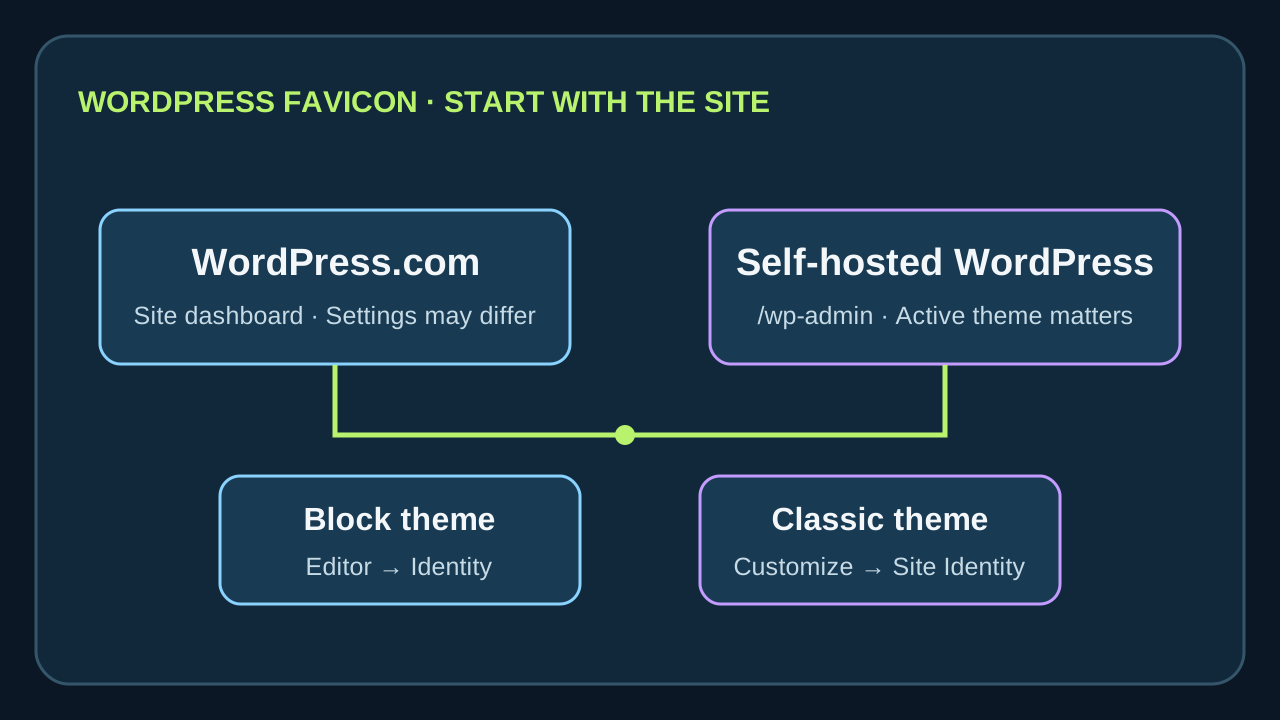
Start with the dashboard you actually use
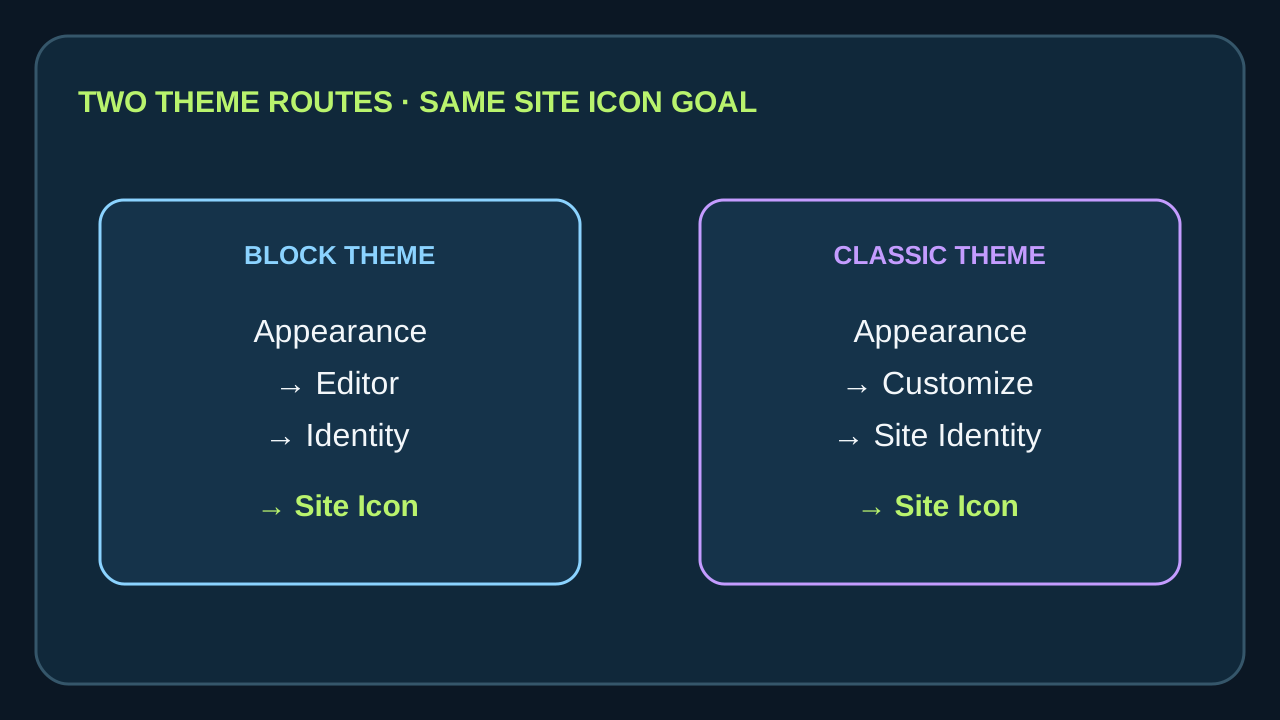
If your site is hosted on WordPress.com, open its site dashboard and inspect Appearance. If you see Editor, open Appearance → Editor → Identity → Site Icon. Choose or upload the image, then Save. If the dashboard offers Customize, open Appearance → Customize → Site Identity → Site Icon, choose the image, and save the change. WordPress.com also exposes a Site Icon control under Settings → General on some dashboard routes.
For a self-hosted site, use the active theme’s route. With a block theme, look under Appearance → Editor → Identity → Site Icon. With a classic theme, open Appearance → Customize → Site Identity → Site Icon. The Site Icon control sets the browser and bookmark icon; a Site Logo block is the logo displayed in the page layout. Selecting a logo does not necessarily set the icon unless the block’s Use as site icon option is enabled.
The uploaded file is not the first diagnostic. First decide which dashboard and theme you have. That choice explains why a path copied from another WordPress site may not exist in yours.
If you cannot find “Site Icon”
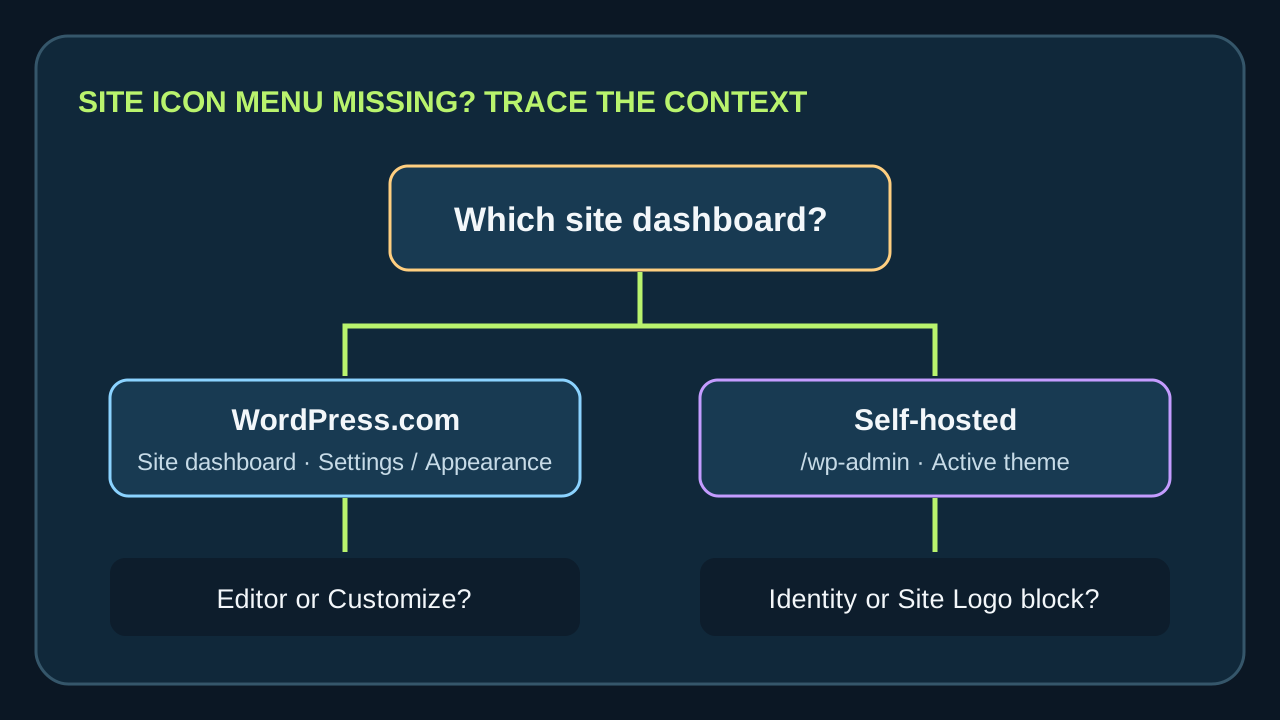
Use this order before adding a plugin or editing theme code:
- Confirm the dashboard. Are you in the site dashboard on WordPress.com, or in the
/wp-admindashboard of a site hosted elsewhere? A browser bookmark, hosting file manager, or account dashboard is not the same settings screen. - Read the menu label. Under Appearance, Editor points to the block-theme editor route; Customize points to the classic Customizer route. If neither appears, check that you are in the intended site and signed in with an account that can change design settings.
- For a block theme, inspect Identity and the Site Logo block. In the editor, open the settings sidebar and select Identity. If the theme exposes a Site Logo block instead, select that block and inspect its settings for Use as site icon. Save the editor after changing it.
- For WordPress.com, check its site settings route. If the theme screen does not expose the control, return to the site dashboard and look for Settings → General → Site Icon. Do not assume a WordPress.com route exists in a self-hosted dashboard.
- Stop before installing another favicon plugin. First note the exact screen you are in and the control you can see. A plugin can add another output path while leaving the original Site Icon setting untouched.
When the setting saves but the icon still looks wrong
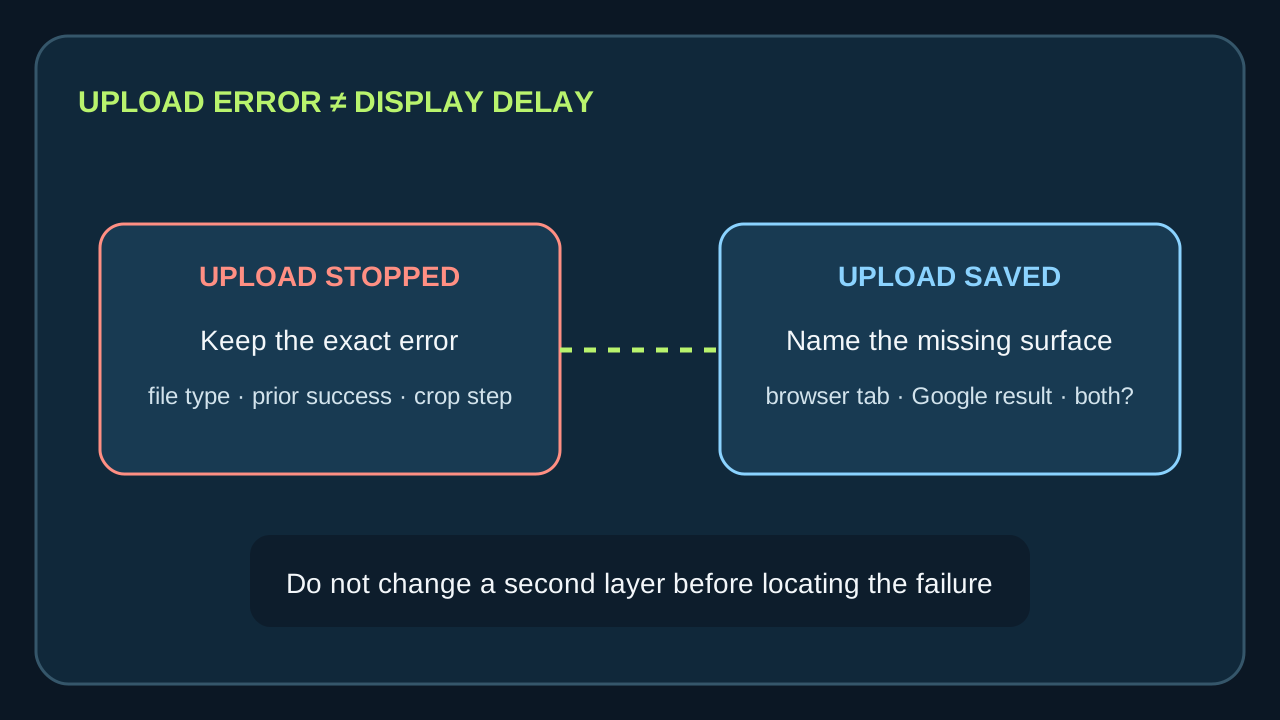
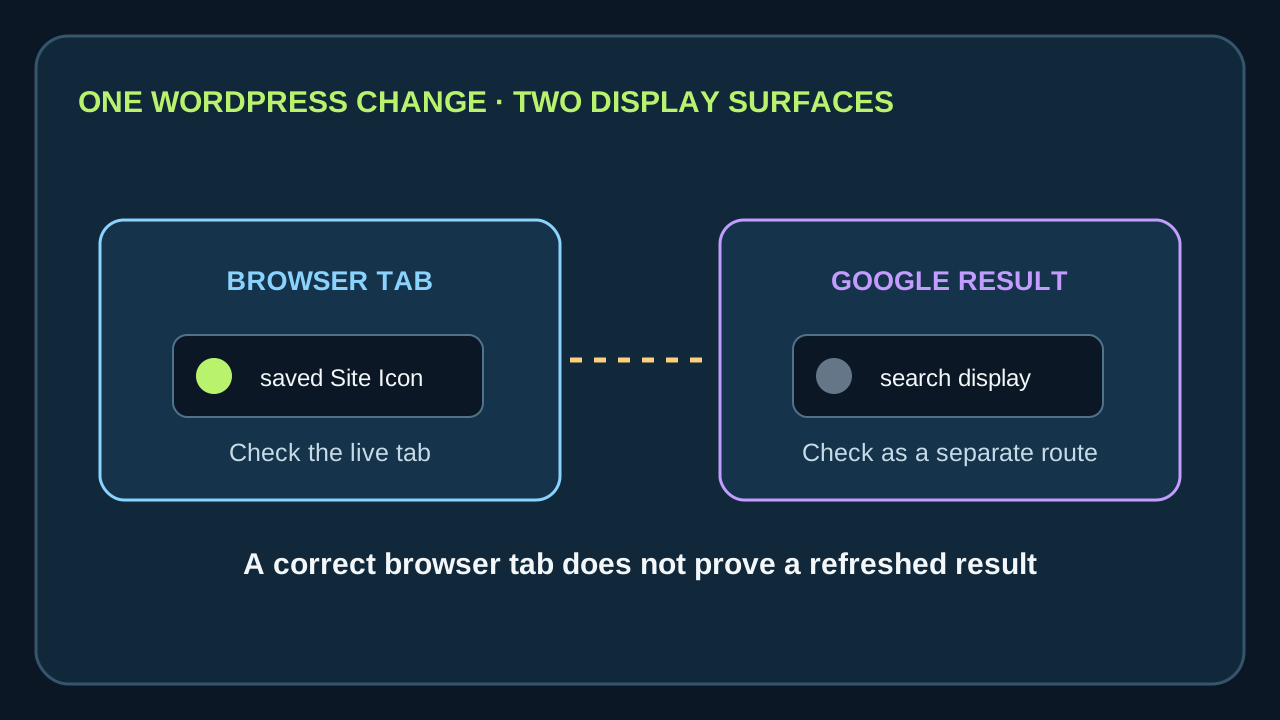
Separate the place where the mismatch appears. A browser tab showing the old image is a different symptom from a Google result showing an old image. Do not keep changing the Site Icon just because the search result has not changed; the WordPress setting and the search display are separate stages.
On a JNews theme, repeated attempts with square PNG files at least 512 × 512 can leave a cropped-favicon.png copy. The behavior is not uniform: a different SVG-to-PNG attempt can change the result, while the crop step may be handled differently across themes. The generated filename alone does not identify the cause.
In the Ashe crop flow, the exact message “There has been an error cropping your image.” can appear with both PNG and JPG. Resizing to 512 × 512 cleared one such upload failure, but that is not a universal fix. If your own upload stops at the crop screen, record the exact message and whether the same image had uploaded successfully before. That narrows the next support question to image processing or the host, rather than search indexing.
If the browser changes but Google does not
Keep the WordPress edit stable while you diagnose the search result. On a HostGator site using Astra, the route can include Appearance → Customize → Site Identity, replacing the root favicon.ico in cPanel, and adding generated files or header code. Those edits may still leave Google showing the old icon, and a refresh can expose a change that did not persist.
A Kinsta-hosted WordPress site using Elementor Pro can show the selected icon in the browser while Google Search still shows an old or missing result. Changing formats, clearing server and CDN caches, placing a file in the root, and requesting homepage indexing are separate actions; none proves that the search display has refreshed. Verify the browser icon first, then treat the search result as a separate wait-and-check problem.
A calm handoff when your route still does not match
Before asking a host or theme developer for help, copy the dashboard route you followed and the exact message the screen showed. Add whether the icon is missing from the browser tab, the Google result, or both. If the upload itself failed, include the file type and the step that stopped. If the upload succeeded, say whether the editor showed the saved Site Icon after reopening it; the favicon help checklist helps distinguish that setting from a display problem.
That small record prevents two different problems from being collapsed into “the favicon is broken”: a setting that is not available in the current dashboard, and an icon that was saved but is not yet visible on a particular surface. Choose the next step from the failure you can actually reproduce.
WordPress favicon questions
How do I add a favicon to WordPress?
Open the Site Icon control for your dashboard and active theme. A block theme usually exposes Appearance → Editor → Identity → Site Icon; a classic theme uses Appearance → Customize → Site Identity → Site Icon. On WordPress.com, check the site dashboard and its Settings → General route if the theme screen differs.
Is “Site Icon” the same as the Site Logo?
They are related but have separate jobs. The Site Logo block displays a logo in the page layout. Its Use as site icon option can also apply that image as the Site Icon. Without that option, changing the logo does not tell you that the browser icon setting changed.
Why is “Customize” missing in WordPress?
Check the active theme and the site dashboard. A block theme uses the Site Editor, so the control may be under Appearance → Editor → Identity rather than Customize. On WordPress.com, also make sure you are in the site dashboard rather than a different account or hosting screen.
Does a WordPress favicon plugin fix a missing Google icon?
A plugin may add or manage icon files, but it does not prove that the browser and Google Search now display the same image. First identify which surface is wrong and whether the WordPress Site Icon was saved. Avoid adding another output path before you know which route failed.
If the WordPress Site Icon is saved but appears missing, use the surface-by-surface checks in the Favicon Not Showing guide.