Squarespace favicon
Squarespace Favicon: Upload, Replace, and Check It
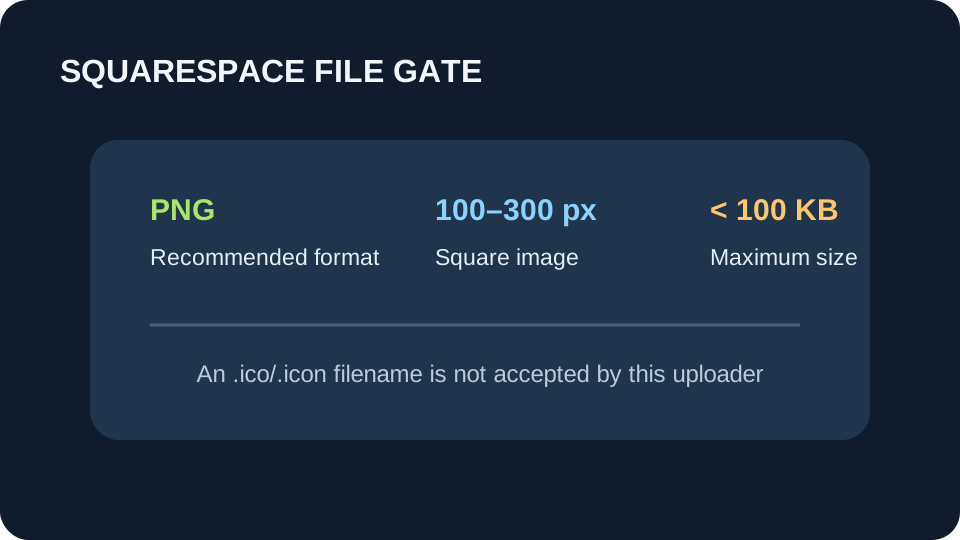
To change a Squarespace favicon, open the Favicon panel, upload a square PNG, and save. Squarespace recommends a 100–300 px image under 100 KB; add a dark-mode alternate only after the default icon is in place.
Prepare a Squarespace PNG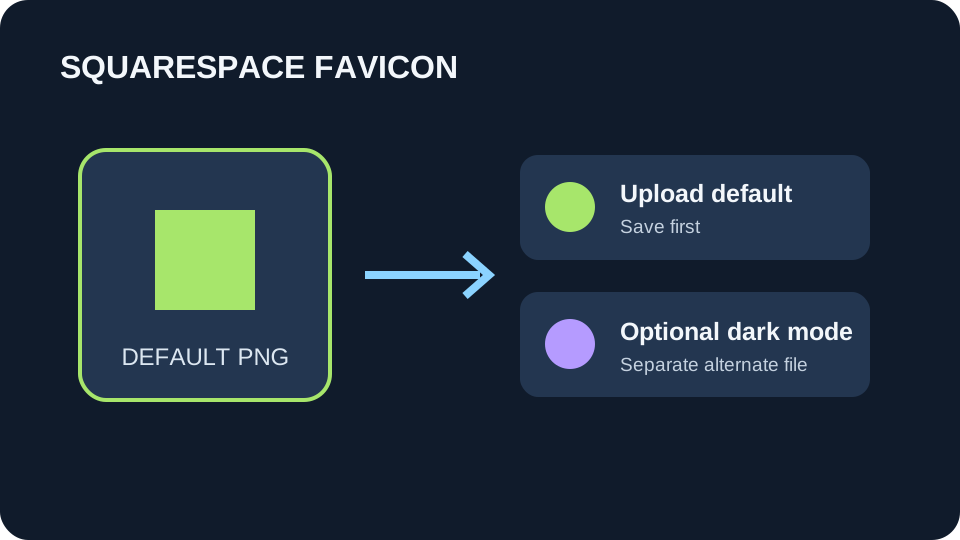
Open the Squarespace Favicon panel, upload a square PNG to the default slot, optionally add a separate dark-mode version, and click Save. If it looks unchanged, compare a fresh browser window with the original tab before uploading again; browser caching, Safari presentation, and Google results are separate checks.
Squarespace favicon setup: the upload path
Open the Favicon panel, drag in the image or use the file picker, then save. Squarespace recommends PNG, an image between 100 and 300 pixels square, and a file no larger than 100 KB. Its help page explicitly excludes the `.icon` extension and says multi-version uploads are unsupported; use a single PNG when following its recommendation.
A dark-mode favicon is an alternate image, not a second size bundled inside one multi-image ICO. Upload the regular favicon first, then add the alternate in its own control and save again. Squarespace does not support a multi-version favicon file in this uploader.
Make the PNG this uploader needs
If your source artwork is too large or not square, use the PNG download option in our PNG to Favicon tool. It fits the artwork inside a transparent square and tries 256, 192, 144, then 100 pixels until the PNG is below 100 KB. The button reports the chosen dimensions and file size; if none fits, simplify the artwork instead of renaming an ICO.
This PNG is the upload file for Squarespace. The separate ICO button creates a multi-layer favicon for other website workflows; it is not the file used in the steps below. Keep the PNG you upload so a later browser or search check refers to the same artwork.
Diagnose the result by surface
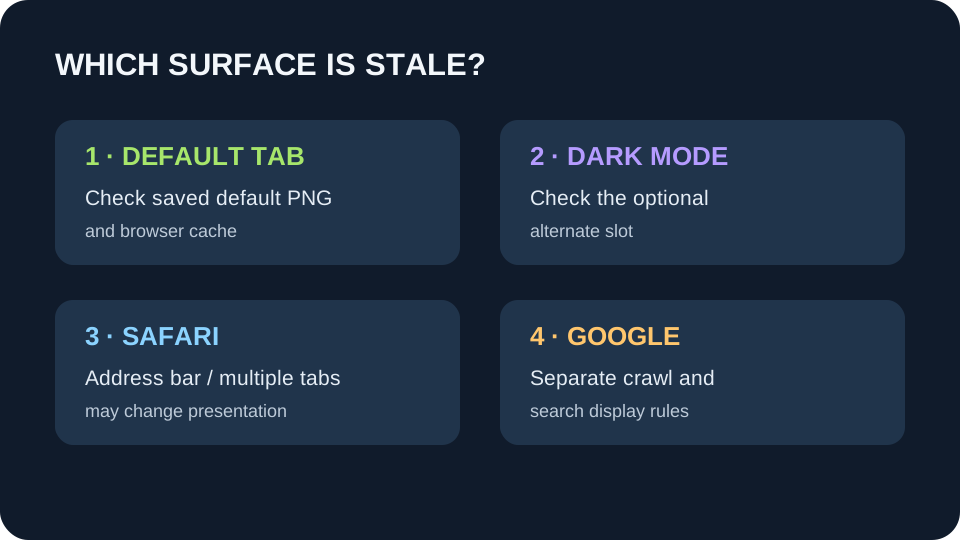
A favicon can look wrong in one place while the saved site setting is correct. Use the surface map below before repeating the upload. It separates the expected Squarespace setting from browser presentation and search indexing, so one stale view does not send you back to the wrong control.
A Squarespace-specific check when the icon seems unchanged
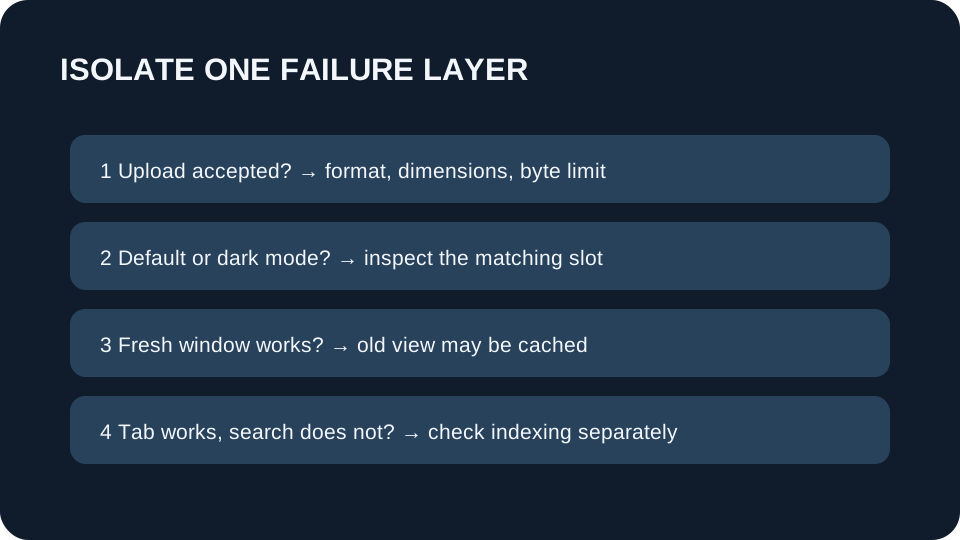
First confirm the file passed the Squarespace gate: PNG, within the documented dimensions, below 100 KB, and saved in the default slot. If the default cube remains, check whether the panel still shows the uploaded file and whether Save completed. If a light appearance is right but dark mode is not, inspect the optional alternate slot instead of replacing the default again.
Next compare two browser contexts: the existing tab and a fresh private window after reopening the published site. If only the old tab is stale, the upload and browser cache are different parts of the chain. Safari may show the favicon only after clicking its address bar or opening multiple tabs, and may add contrast treatment; that display alone does not prove the upload failed. Finally, judge a search result on its own timeline: search engines have their own format and crawl requirements, and Google’s favicon size guidance is not the same thing as the Squarespace upload-size recommendation.
What not to infer from a single preview
A browser-tab icon, a dark-mode icon, Safari’s address-bar treatment, and a Google result are four observations. Record which one failed and keep the uploaded artwork fixed while checking the matching setting or cache. That makes a useful next action visible: fix an upload rejection, add the alternate, refresh a browser cache, or wait for search recrawling. It also avoids changing a working icon just because one surface still shows an earlier image.
Use a simple two-browser check before editing the source: open the live site in the same tab that looked stale, then open it in a new private window. If both views show the same old cube, return to the saved default slot and confirm the file is present. If only the original view is old, stop modifying the asset and investigate that browser’s stored icon. If only dark mode differs, compare the alternate slot against the default. If the tab is correct but Google is not, keep the uploaded image unchanged and treat search indexing as a separate follow-up. This sequence changes one variable at a time, making the next check interpretable instead of repeatedly uploading the same art. It is a diagnostic method, not a promise about how quickly a browser or search engine refreshes its display.
Check Google at the hostname level
Google Search chooses one favicon for a hostname. A subdomain such as shop.example.com can have its own icon, but a path such as example.com/shop shares the favicon for example.com. Before trying to give a Squarespace subpage a different search icon, write down the exact hostname in its address. If the pages share a hostname, changing the Squarespace upload again will not create a separate Google favicon for that path.
For Google Search, the signal is a rel="icon" link in the home page, not simply the fact that an image appears in a Squarespace setting. Record the home page URL and the icon URL referenced by that link. Google permits a relative or absolute icon URL, including one hosted on a CDN. This check distinguishes the site-wide icon reference from the image file you selected in the editor; do not assume the editor preview proves what the home page exposes.
Google requires both Googlebot to crawl the home page and Googlebot-Image to crawl the icon file. Check that neither URL is blocked from crawling, and keep the icon URL stable while troubleshooting. Changing the image repeatedly can also change the URL and make your comparisons harder to interpret. If you cannot inspect the home page reference or crawler access from your Squarespace controls, record that as an unresolved Google-only check rather than treating another upload as proof of a fix.
After correcting a Google-side reference, use Search Console’s URL Inspection tool on the home page to request indexing. Google says recrawling and processing can take several days to several weeks, and meeting its rules does not guarantee that the icon will appear. Keep the upload and its URL unchanged during that wait; a search result that has not refreshed is not, by itself, evidence that the Squarespace upload failed.
| Where you look | What should control it | First check |
|---|---|---|
| Regular browser tab | Default favicon | Default slot contains the saved PNG |
| Dark-mode tab | Optional dark-mode alternate | Add alternate after the default icon |
| Safari address bar | Safari’s favicon presentation | Open multiple tabs or click the address bar |
| Google result | Google crawl and favicon rules | Check search guidance separately; Squarespace upload success is not a ranking guarantee |
Change the icon
- 01Prepare one upload-ready image
Use a square PNG between 100 × 100 and 300 × 300 pixels and below 100 KB. The site’s PNG download option can prepare one from your artwork; check the downloaded dimensions and bytes before uploading.
- 02Save the default favicon
Open the Favicon panel, choose the default image, and click Save. Add the optional dark-mode alternate only after the default is uploaded.
- 03Check the surface you care about
Open the published site in a fresh browser context and inspect a tab or bookmark. Treat Safari’s address-bar behavior and a search-result icon as separate checks; they need not update with the tab.
FAQ
Squarespace favicon questions
What file should I upload as a Squarespace favicon?
Use one square PNG between 100 × 100 and 300 × 300 pixels and below 100 KB, as Squarespace recommends. Its documentation does not clearly settle every `.ico` case, so this guide uses the documented PNG route.
Can I use a different Squarespace favicon in dark mode?
Yes. Upload the default favicon first, then add an optional alternate for dark mode in the Favicon panel and save.
Why does Safari show my Squarespace favicon differently?
Safari may show it only in certain views, such as after clicking the address bar or opening multiple tabs, and may add a border or background for contrast. Check the saved upload separately from Safari’s presentation.
Why is my Squarespace favicon not in Google search yet?
A successful Squarespace upload does not guarantee a search result will immediately display the icon. Google has its own favicon requirements and crawl cycle; check those separately from browser-tab behavior.