PNG to ICO guide
Convert a PNG to an Icon: Make and Verify a Real ICO
To convert a PNG to an icon, upload the image, choose the ICO layers your destination calls for, and download a real .ico file. Then inspect the saved file instead of judging it by its filename or the converter preview.
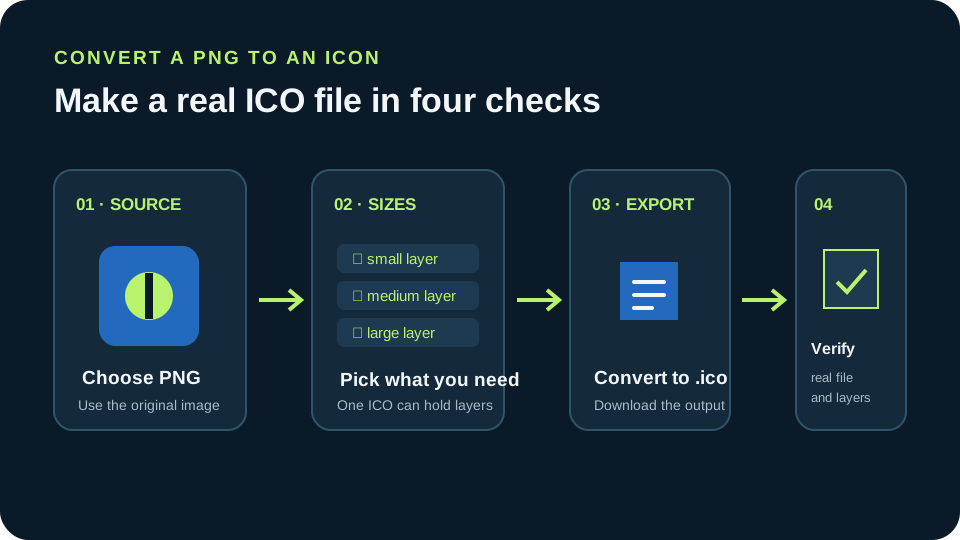
Choose the PNG you want to use, select the required ICO image sizes, convert, and verify the downloaded .ico contains those image entries. In a local test of pngtoicotool, the default selection produced a six-layer ICO, while selecting only 256 produced a one-layer ICO from the same 256 × 256 PNG. The 6,155-byte difference belongs to this test image and run, not a general size rule.
The article’s measured result is a same-input comparison of layer selection in this site’s local converter; it is not a comparison of conversion websites.
The measured fixture and ICO downloads illustrate this run only; check the target application's current requirements.
What ‘convert a PNG to an icon’ means here
This guide uses icon to mean a Windows-style ICO file. The target phrase appeared in the same family of searches as people who want an icon file from existing PNG artwork. An ICO export packages the selected image entries in one file; the application that consumes it may still set its own required sizes and packaging rules.
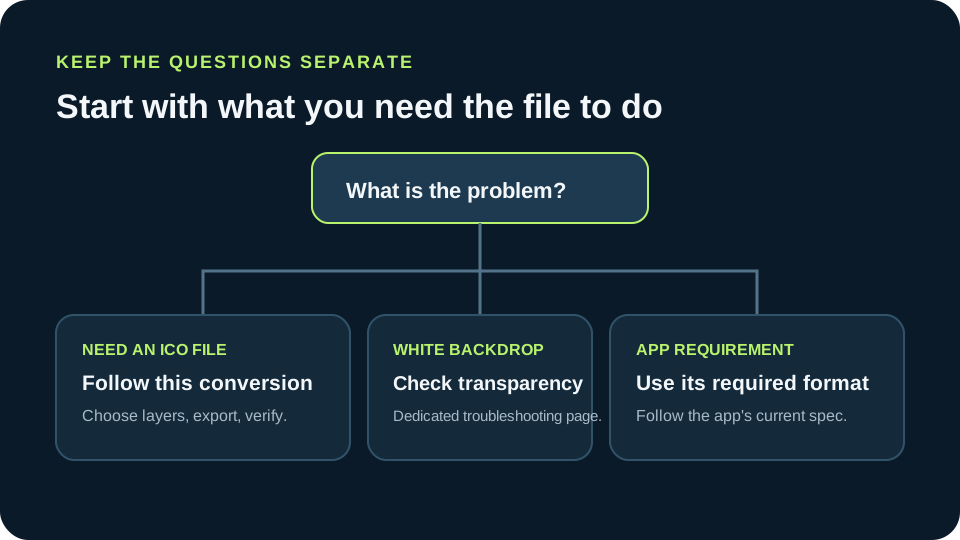
A Reddit user described an export that still looked white. That report motivated this guide’s opening check: make sure the requested output is a real ICO, then inspect what the downloaded file contains. The cause of a white backdrop is a different problem and is handled in the dedicated transparency guide.
Choose layers for the destination
Different software asks for different icon sizes. Use the destination’s current instructions as the requirement, then select the matching ICO entries. A larger entry does not substitute for a small entry when the target explicitly needs both.
Microsoft’s Win32 icon documentation explains that applications can request icon resources at different display sizes. That is why this guide has you inspect the saved entry list instead of assuming that one image inside an ICO will suit every use.
Use the measured comparison as a file check, not a rule
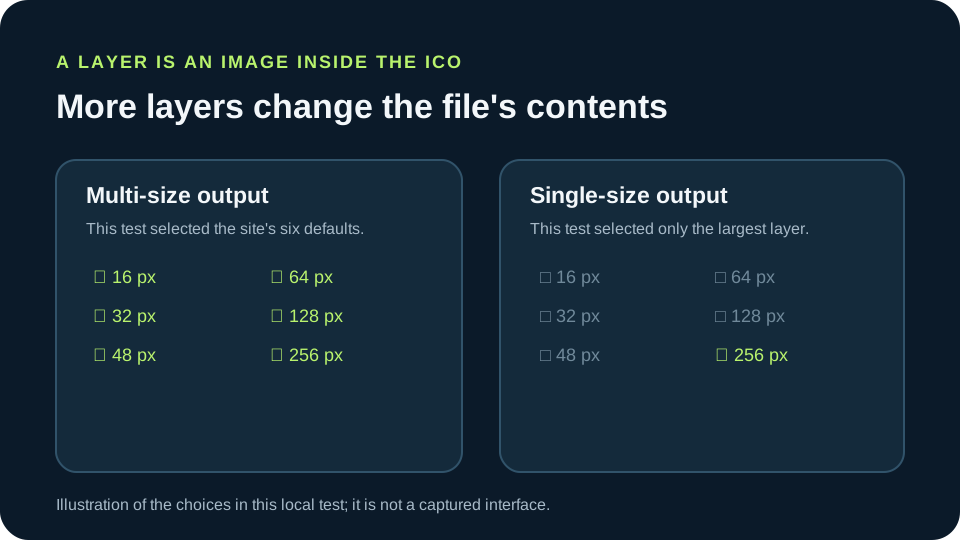
I generated one synthetic 256 × 256 PNG locally and converted that exact source twice with the current site code in Chrome: once with the six default sizes selected and once with only the 256-pixel size selected. I saved both downloads, read the ICO directory, and decoded every embedded image entry.
The six-layer file contained entries at 16, 32, 48, 64, 128, and 256 pixels and measured 9,673 bytes. The single-layer file contained only the 256-pixel entry and measured 3,518 bytes. The difference was 6,155 bytes for this artwork. This shows what the size controls changed in this run; it does not show that fewer layers are better or predict the output size for another PNG.
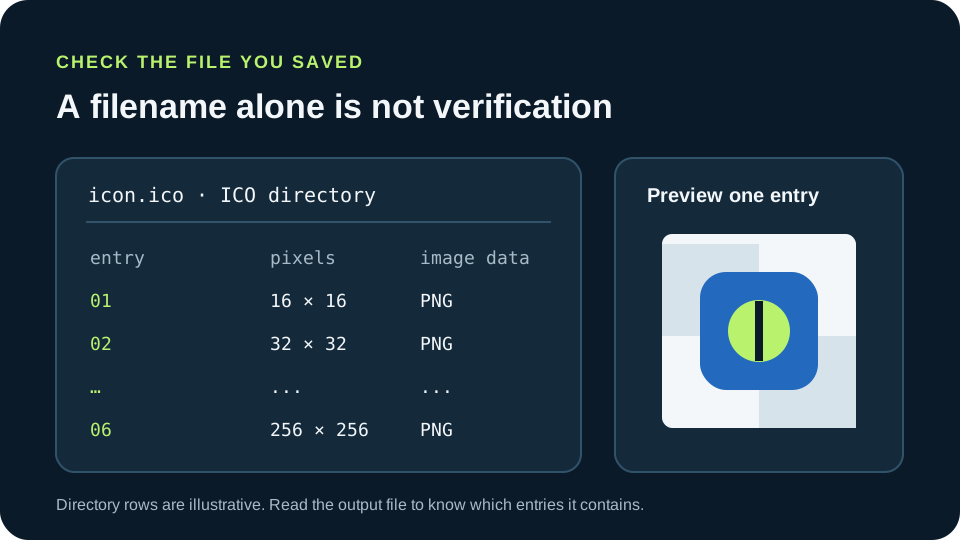
I also checked the ICO directory offsets against both saved file lengths. Each of the six entries pointed to image data within the six-layer file, and the single entry did the same in the one-layer file. All seven entries began with a PNG signature. The 3,496-byte 256-pixel image payload was byte-identical in both files; the extra 6,155 bytes in the first download came from its five additional entries and larger directory. That comparison is specific to these two downloads.
Keep white-background troubleshooting separate
The measurements above count the output file and its ICO entries. They do not diagnose the source PNG’s white pixels, inspect every viewer’s canvas color, or promise that transparency will survive every conversion setup. If the specific symptom is a white rectangle around an icon, start with the source alpha and output checks in the dedicated guide instead of changing layer count.
For the reported white-background symptom, use the separatePNG to ICO white-background troubleshooting guide.
Same PNG, two layer selections, two local downloads
The source was a locally generated transparent 256 × 256 PNG. Both ICOs came from the current site page and JavaScript using local Chrome. ICO entries were read from the saved bytes and each embedded PNG was decoded.
| Selected layers | Entries found in saved ICO | ICO bytes |
|---|---|---|
| 16, 32, 48, 64, 128, 256 px | 6: 16, 32, 48, 64, 128, 256 px | 9,673 |
| 256 px only | 1: 256 px | 3,518 |
One synthetic source and one run per selection. The 6,155-byte difference describes these files only. No third-party converter was tested.

Convert and check the ICO
- 01Start with the PNG you intend to use
Choose the source image, not a screenshot of a preview or a renamed file. Check that its composition fits the destination and keep the original so you can compare the exported result.
- 02Select the ICO image layers
Follow the requirements of the browser, Windows program, installer, or other destination. Multiple layers store alternate raster sizes in one ICO; one selected layer creates a single-size file. Do not assume a preset is right for every application.
- 03Export, then inspect the downloaded file
Download the .ico output and open it in an icon inspector. Read the directory entries and preview the sizes you plan to use. The file on disk is the result to check; a successful button click alone does not tell you which entries were saved.
FAQ
PNG to icon conversion questions
Can a PNG be converted into an icon file?
Yes. Export it as an ICO when the destination asks for a Windows-style icon file, then inspect the saved file’s image entries.
Does one ICO always contain several sizes?
No. Its entries depend on the export settings. In this local test, the default selection made six entries and selecting only 256 made one.
Which ICO sizes should I select?
Use the requirements from the software or platform that will read the icon. This experiment measures a particular tool setting; it does not establish a universal preset.
Does changing the filename to .ico convert the image?
No. Rename alone does not create the ICO directory and image data. Export an ICO file and inspect its contents.