PNG to ICO small-size clarity
PNG to ICO Looks Blurry at 16 Pixels? Simplify the Small Icon
If your PNG to ICO result looks blurry at 16 pixels, inspect that 16-pixel image at its actual display size. Remove fine detail or make a dedicated small-size drawing, then rebuild the ICO and check the saved 16-pixel layer. A larger source alone cannot guarantee a readable tiny icon.
Convert a PNG to ICO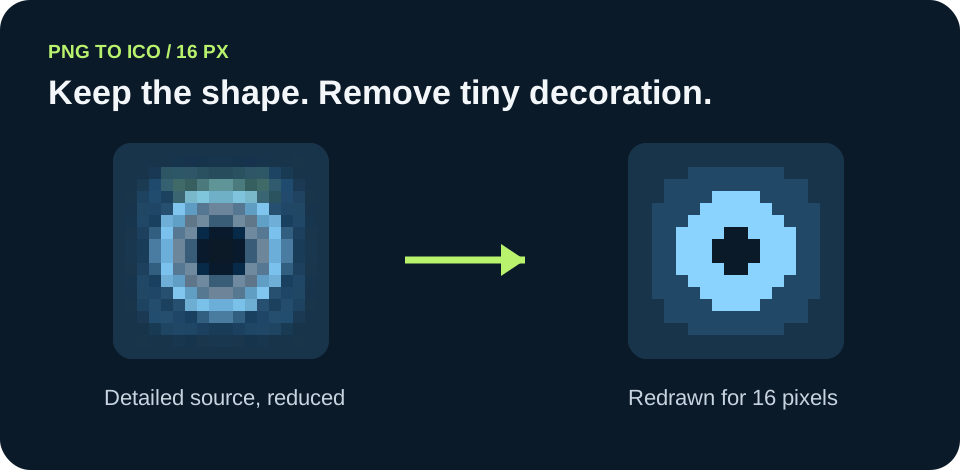
Start with the shape people must recognize. In our reproducible sample, a detailed 256-pixel drawing became a crowded 16-pixel thumbnail; a separate 16-pixel drawing kept one bold opening and a wider silhouette. This is a design comparison, not a quality score for every converter. If your tool accepts only one source PNG, simplify that source or use an icon editor that lets you supply size-specific artwork.
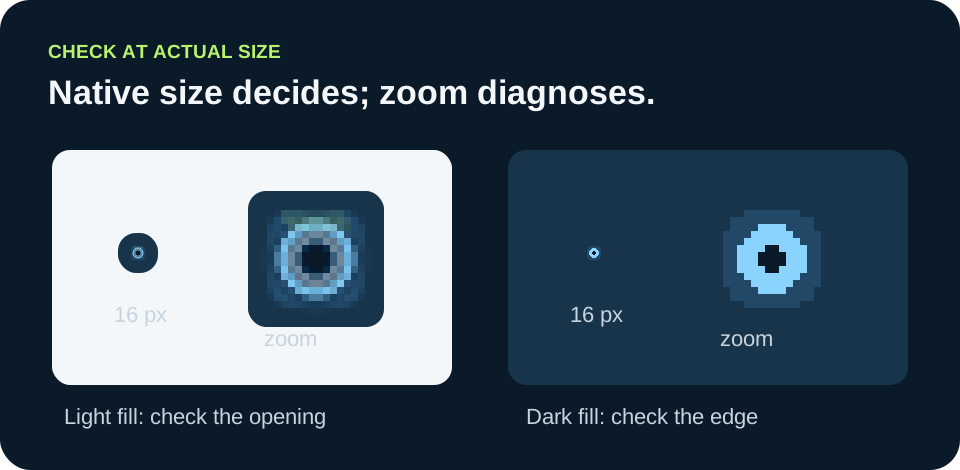
View the examples below at 100% zoom as well as enlarged. The enlarged panels expose pixels; the native-size chips show the actual recognition task. Browser or display scaling can alter how a 16-pixel image appears, so judge the final ICO in its destination too.
Why a sharp source can become a crowded icon
A 256-pixel PNG can carry narrow strokes, small gaps, shadows, and labels. At 16 pixels, those features must share far fewer pixels. Microsoft's Windows icon guidance says the 16 × 16 version should retain the key idea and warns that simply scaling down a 256 × 256 drawing does not work as a design method. That is guidance for icon artwork, not a promise that a particular converter will blur every PNG.
Our example starts with a blue badge that has an open center, thin inner rings, and small marks. The script downsamples it to 16 × 16 with Pillow's LANCZOS resampling. It also draws a separate 16 × 16 version with a wider opening and without the inner decoration. The pair isolates one design choice: spend the few available pixels on the feature that identifies the icon. Download the PNGs and script to inspect or reproduce this comparison.
What we saw in the original sample
At native size, the downsampled badge has several closely spaced light and dark boundaries around its center. The simplified badge has one dominant opening and a stronger outline. Enlarging either image makes individual pixels easy to count, but the decision should be made at native size. This is a visual observation on two synthetic images; it is not a measured readability study and does not establish a universal pixel threshold.
The script saves the detailed 256-pixel PNG, its downsampled 16-pixel PNG, the deliberately drawn 16-pixel PNG, and separate ICO files for the two small variants. It also reads back each ICO to confirm that its first image is 16 × 16. Those files make the example inspectable without relying on a screenshot of an editor. A multi-size ICO may need different artwork per layer; a one-input converter might only resample one design.
Choose the fix from the failure you see
If the 16-pixel entry is absent, fix the output package before changing the drawing. If it exists but the central shape closes up, remove fine lines or redraw the shape with a wider opening. If the shape is clear against white but vanishes against dark, review its edge and contrast. If only the target app looks soft, compare the exact ICO layer it uses with a direct image view; application scaling is a possible cause, not a conclusion you can make from a file name.
For a Windows application icon, Microsoft lists 16, 32, 48, and 256 pixels in its full icon set. The list helps you plan review sizes; it does not replace checking what your encoder actually wrote. For a website favicon, test the favicon in the browser you care about rather than assuming the same artwork will look identical in every context.
Original sample files
Generated locally on 26 September 2026 with Pillow 12.3.0. The comparison is illustrative: no user study or converter-wide benchmark was performed.
| Variant | Input design | Saved image | Question to ask |
|---|---|---|---|
| Automatic reduction | Detailed 256 × 256 badge | 16 × 16 PNG and ICO | Do inner marks crowd the opening? |
| Small-size redraw | Simplified 16 × 16 badge | 16 × 16 PNG and ICO | Is the opening identifiable at native size? |
The two ICO files are separate examples, not a claim that this site's converter combines different drawings into one multi-size ICO. Reproduce the assets with the script; Pillow version and rendering environment may change output bytes.



A four-step 16-pixel check
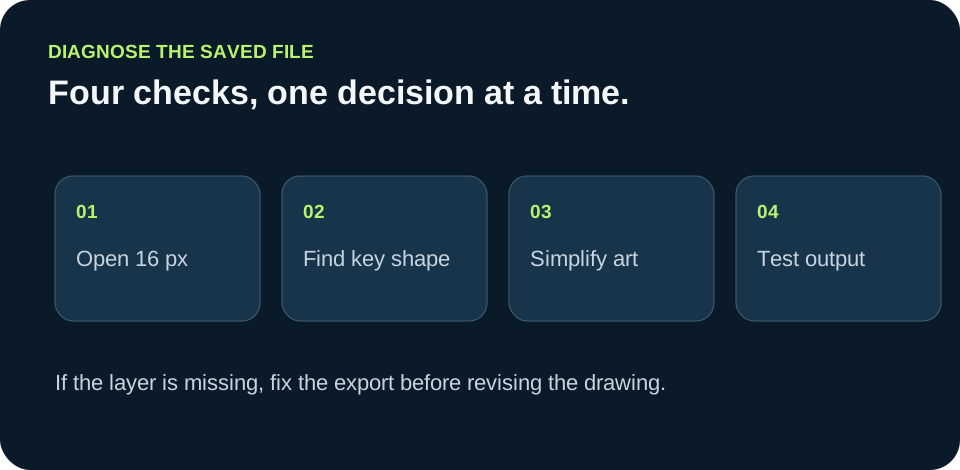
- 01Open the saved 16-pixel layer
Check that the ICO contains a 16 × 16 image, then view that image at native size. If the entry is missing, first fix the export settings or use a converter that writes the required layer.
- 02Name the one identifying feature
Write down what a viewer must recognize: for our sample, it is the open center of a blue badge. If tiny internal lines compete with that feature, remove those lines in a small-size version.
- 03Compare on two backgrounds
Place the actual small layer on both light and dark fills. Look for lost openings, merged edges, weak contrast, or a pale fringe. An enlarged view helps diagnose pixels but can hide the native-size reading problem.
- 04Rebuild and test where it will appear
Export the ICO again, confirm the written layer, and test it in the target application or browser. Keep both the source and final ICO so you can tell whether the problem came from the drawing, resizing, or the consuming app.
FAQ
Small ICO questions
Will starting from a 256-pixel PNG automatically fix a blurry 16-pixel ICO?
No. A large source gives the encoder pixels to work with, but the small result still needs a readable design. Inspect the 16-pixel layer at native size and simplify details that merge.
Should I judge the icon while zoomed in?
Use zoom to diagnose pixels. Decide whether the icon reads at its actual display size and in its destination, because magnification changes the task.
Can one PNG provide a different design for each ICO size?
A converter that accepts one PNG may only resize that one drawing. If a 16-pixel redraw is necessary, use a workflow or editor that can place size-specific images into the ICO, then inspect the saved entries.