PNG to ICO converter output check
PNG to ICO Converter: Check the Smallest Layer Before Calling It Blurry
Open the downloaded ICO and list the sizes actually inside it. If the small layer you need is absent, fix the export; if it exists but has zero pixels with alpha above 0, the layer is invisible; if visible pixels exist, judge its shape at native size before calling it blurry. A size selected in a PNG to ICO converter is not proof that the saved file contains that size.
Convert a PNG to ICO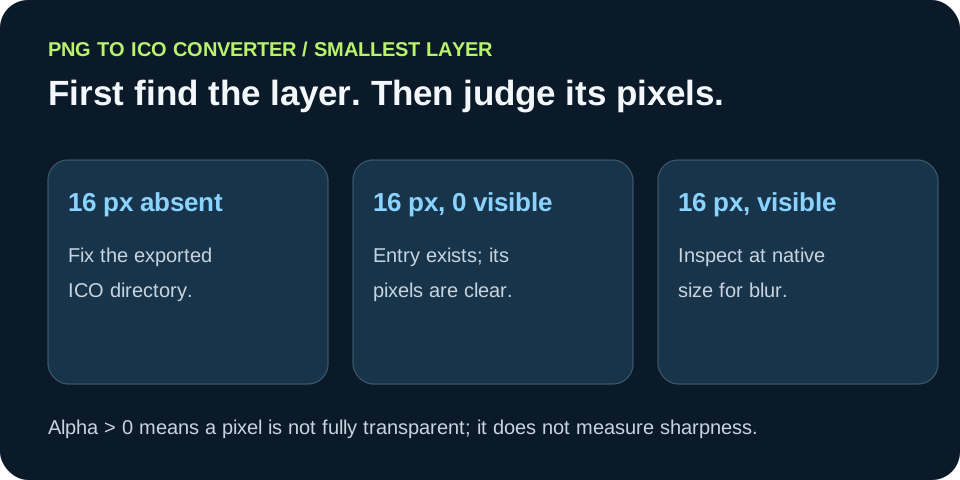
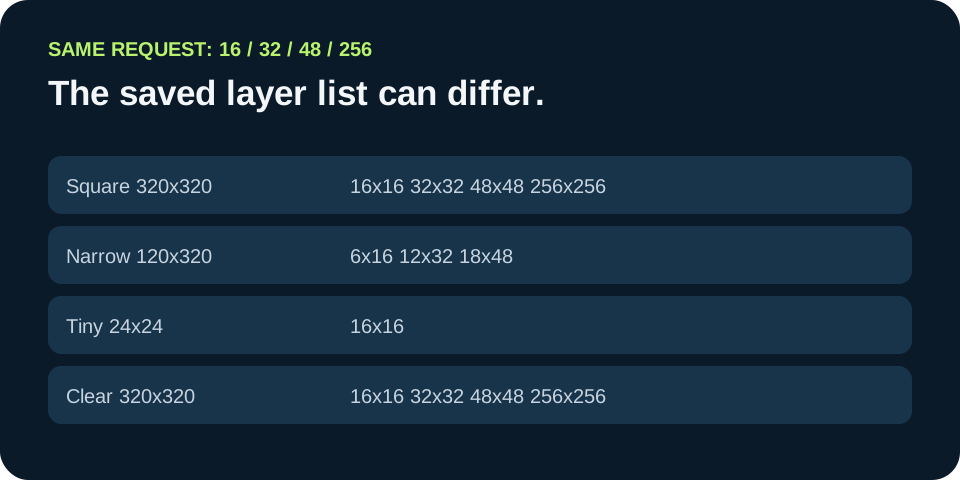
In our Windows/Pillow 12.3.0 rerun, all four PNGs requested 16, 32, 48, and 256 pixels. The square source wrote all four; the narrow source wrote 6×16, 12×32, and 18×48 instead of square entries; the 24×24 source wrote only 16×16; the fully transparent source wrote all four but its smallest layer had 0 visible pixels. These outcomes belong to this encoder and these synthetic inputs, not to every converter.
Here, a 'visible pixel' means decoded alpha > 0: not fully transparent. This count answers whether the layer can contain visible artwork, not whether the artwork is crisp. A browser, display scale, or Windows view may choose or scale a different size; check the exact destination after inspecting the file.
Four sources, one request, four different checks
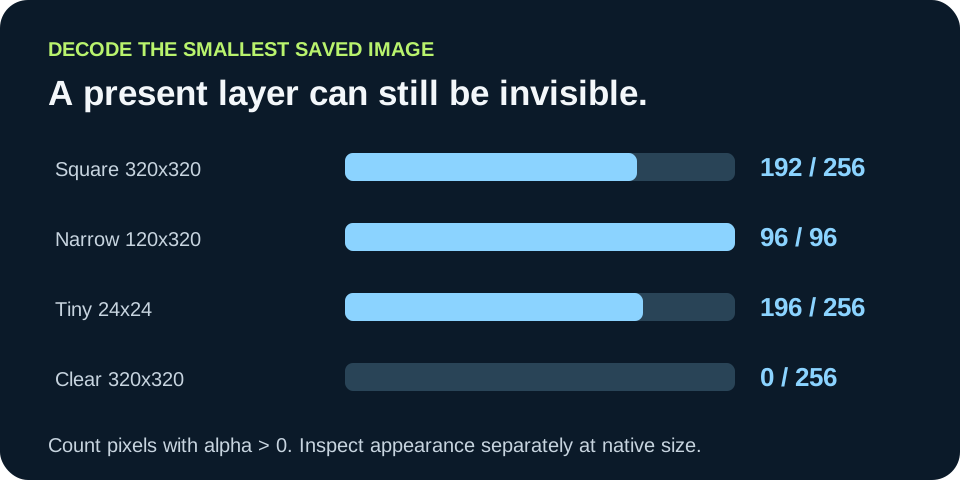
We made four synthetic RGBA PNGs and requested the same 16/32/48/256 square size set from Pillow 12.3.0 on Windows on 26 September 2026. The square 320×320 badge wrote four square entries. The 120×320 narrow badge wrote three non-square entries: 6×16, 12×32, and 18×48. The 24×24 badge wrote only 16×16. The entirely transparent 320×320 source wrote four entries, just like the square badge. The table below reports the raw ICO directory, byte count, and decoded smallest-layer alpha count for each file.
The two 320×320 outputs show why layer count alone is insufficient: one smallest layer had 192 of 256 pixels with alpha above zero; the transparent one had 0 of 256. The 24×24 case shows a different failure: its 16×16 image exists but the 32, 48, and 256 layers requested were absent. The narrow case has a smallest image of 6×16, not a 16×16 square. Those are distinct diagnoses even before looking at visual quality.
Absent, invisible, or actually soft?
First ask whether the exact dimensions you need occur in the saved directory. If not, call it a missing-layer or wrong-dimensions issue. Next decode the matching entry and inspect alpha. A zero count of alpha > 0 pixels means the layer is fully transparent; it is present but invisible. A positive count does not rule out a pale edge, low contrast, a shape that collapses at 16 pixels, or a background-colored icon. Those require an actual visual check.
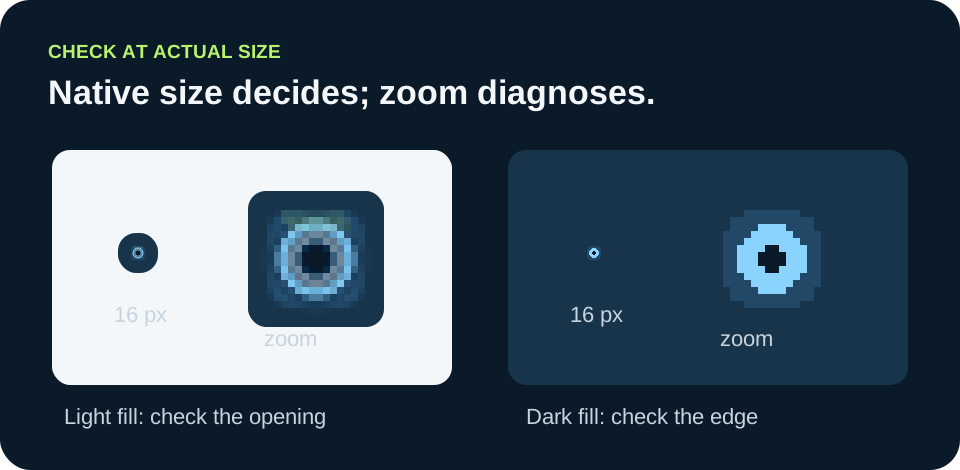
For our separate 16-pixel design sample, a detailed 256-pixel badge was reduced to 16 pixels and compared with a deliberately simplified 16-pixel drawing. At native size, the redrawn badge leaves a clearer central opening. That is an inspectable design example, not a reader study or a conversion benchmark. Microsoft icon guidance likewise calls for preserving the key visual idea at small sizes rather than merely shrinking a large drawing.
Use byte counts as evidence, not a quality grade
The fully transparent ICO in this run was 651 bytes and contained four entries. The 24×24 source produced a 457-byte ICO with one entry. The narrow source produced a 1,462-byte ICO with three non-square entries. File size tells you how large this particular output is, but these examples show that a small byte count by itself cannot establish completeness or visibility. Inspect the directory and decoded image instead.
Pillow documents that requested ICO sizes larger than the source can be ignored. That fits our 24×24 observation, but the exact bytes and narrow-source dimensions are our measured results for this version and artwork. Another PNG to ICO converter might pad, crop, resize, reject, or encode the same source differently. If you need a square small layer, prepare a square canvas or use a tool with explicit padding controls, then inspect the output rather than assuming the adjustment worked.
Check the surface, not only the file
For a Windows application icon, Microsoft's design guide lists 16, 32, 48, and 256 pixels in the full set, while its icon-size documentation explains that small system metrics can scale with display DPI. For web pages, MDN notes that browsers can choose among icon links using media, type, and sizes information. That is why this article uses 16×16 as a concrete small-layer audit, not as a universal claim about every tab or desktop display.
Keep the original PNG, final ICO, and the destination screenshot together when diagnosing a real project. If the file contains the needed visible layer but only one destination looks soft, record that environment and check which image it actually displays before blaming the converter. If you cannot determine that selection, mark it unknown.
Local rerun: smallest saved image
Windows, Pillow 12.3.0, 26 September 2026. All four sources requested square 16, 32, 48, and 256 pixel entries. Alpha > 0 counts pixels that are not fully transparent in the decoded smallest entry.
| Source PNG (bytes) | Actual ICO layers (px) | ICO bytes | Smallest | Alpha > 0 pixels |
|---|---|---|---|---|
| Square art 320×320 (1,401) | 16×16 / 32×32 / 48×48 / 256×256 | 6,834 | 16×16 | 192 / 256 |
| Narrow art 120×320 (989) | 6×16 / 12×32 / 18×48 | 1,462 | 6×16 | 96 / 96 |
| Tiny art 24×24 (168) | 16×16 | 457 | 16×16 | 196 / 256 |
| Fully transparent 320×320 (477) | 16×16 / 32×32 / 48×48 / 256×256 | 651 | 16×16 | 0 / 256 |
Every written entry in this rerun was PNG-encoded inside the ICO. The CSV also records the separate alpha < 255 count, which is not the same as the alpha > 0 visibility count. Re-run the script if the encoder version or environment changes. These are not measurements of this website's converter.




Check the smallest saved layer in four moves
- 01List the saved dimensions
Open the downloaded ICO in a tool that lists every embedded image, or run the downloadable script's directory parser. Write down exact width × height pairs. For a 16×16 target, an entry such as 6×16 is not the same size, even if it is the smallest entry.
- 02Decode the layer you will use
If the required entry exists, decode that entry and count pixels with alpha > 0. Zero means every pixel is fully transparent in that decoded image. A positive count only tells you that some pixels could show; it does not certify legibility.
- 03Inspect appearance at native size
View the decoded small image against light and dark fills at its actual dimensions. If the defining shape merges or fine lines crowd it, simplify the small artwork. Enlarge the image to diagnose which pixels merged, then return to native size for the decision.
- 04Rebuild and check the destination
If the entry was missing, revise the source size, canvas shape, or encoder settings and inspect the new ICO. If the entry was present but weak, revise the drawing. Finally check the icon in the browser, bookmark surface, or Windows view where it will appear.
FAQ
Small-layer questions
Is a missing 16×16 entry the same as a blurry 16×16 entry?
No. A missing entry has no 16×16 image to inspect. A blurry entry exists and has to be decoded and viewed at native size. The narrow source in our lab wrote 6×16, not 16×16, despite the square-size request.
Can an ICO contain a 16×16 layer that shows nothing?
Yes. Our fully transparent 320×320 PNG produced a 16×16 ICO entry with 0 of 256 decoded pixels having alpha above zero. Its directory was complete for the requested sizes, but the small image was invisible.
Does an alpha > 0 count prove the icon is sharp?
No. It only says some decoded pixels are not fully transparent. Inspect shape, contrast, and edges at native size on the relevant backgrounds.
Will every converter write the same layers as this table?
No. The numbers come from Pillow 12.3.0 on Windows with four synthetic files. Inspect the output of the converter and settings you actually use.